A master account is a centralised management account for chains. It is the primary access you use when you have more than one Revo XEF account with similar products. In addition to the catalogue, you can synchronise employees, privileges, discounts, payment methods and many other settings you will discover in this article.
1. BENEFITS OF THE MASTER ACCOUNT
2. HOW TO REQUEST A MASTER ACCOUNT
3. HOW A MASTER ACCOUNT WORKS
4. BACK-OFFICE MODULES
5. CHAIN MODULE: OPTIONS AND LISTINGS
6. ACCESSING CHILD ACCOUNTS
7. RULES AND SYSTEM LIMITS
1. BENEFITS OF THE MASTER ACCOUNT
- Single access lets you enter all your establishments without needing individual credentials.
- A centralised product catalogue that synchronises with all your accounts at once.
- Synchronisation of settings such as employees, privileges, discounts, payment methods, events and more.
- Aggregated sales, payment, category and shift reports from all establishments on a single screen.
- Manage prices and activate/deactivate products per establishment without accessing each account individually.
- Unlimited number of associated child accounts.
2. HOW TO REQUEST A MASTER ACCOUNT
Contact your official Revo XEF distributor. The distributor will create the master account, associate the child establishments and provide you with the login credentials.
IMPORTANT: It is recommended to create the master account before you start operating the establishments to ensure all data is correctly synchronised from the start. If you have already configured products or employees separately in individual accounts and then decide to use a master account, contact your distributor again to ensure a correct migration without data loss or duplication.
3. HOW A MASTER ACCOUNT WORKS
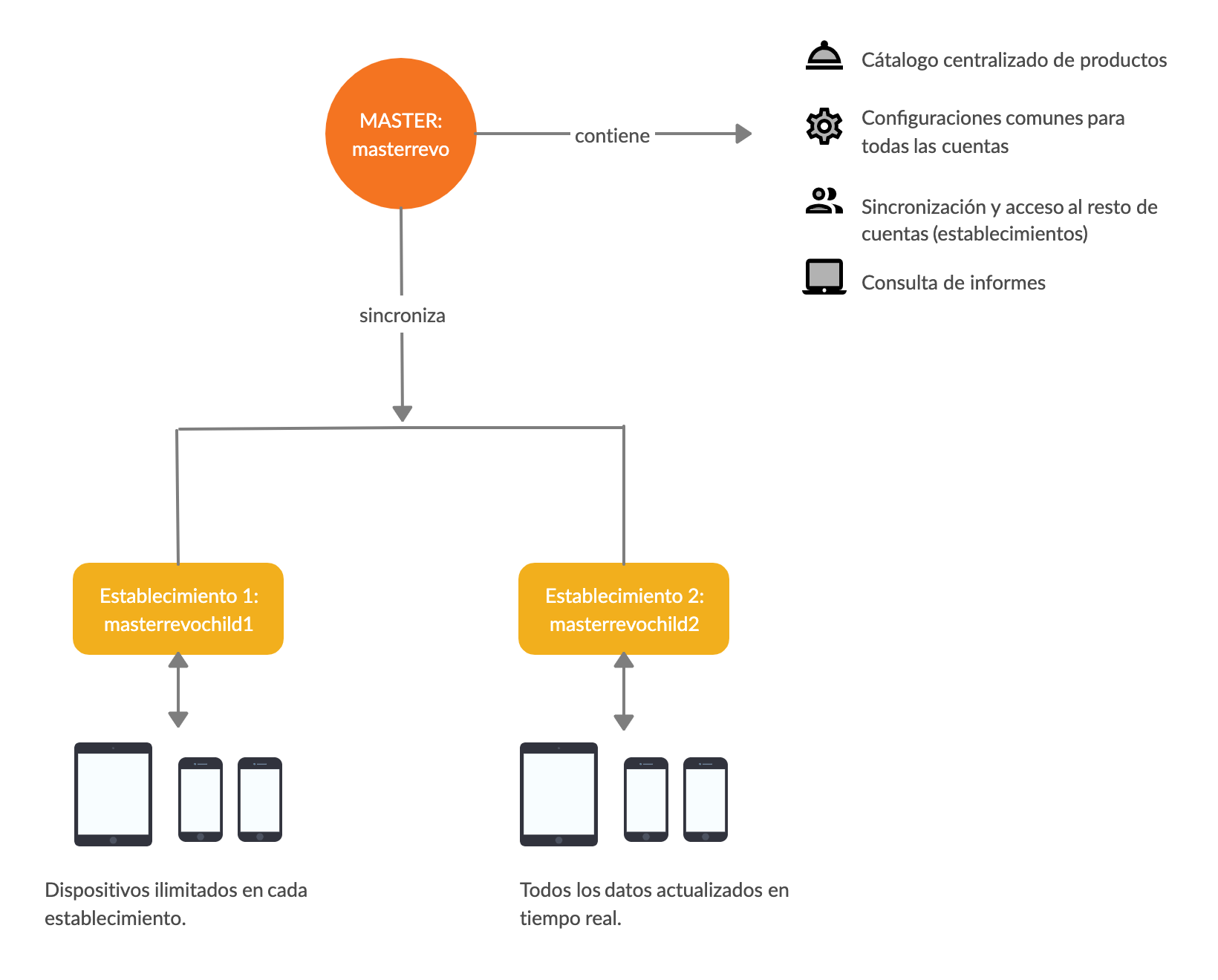
The master account acts as the source of truth for the catalogue and configuration. Each child establishment has its own independent database with a synchronised copy of that data from the master.
Synchronisation has two fundamental characteristics:
- Unidirectional: data always flows from master → child. If you modify something directly in a child account (an employee, a discount, a privilege), that change may be overwritten in the next synchronisation if that data type is enabled in the advanced configuration.
- Incremental: only records created or modified since the last synchronisation are transferred. This keeps the process fast even with large catalogues.
Each establishment's own operations (orders, invoices, cash shifts, payments) are completely independent between accounts and are never synchronised.
Once you have received the credentials, access the back-office of the master account.
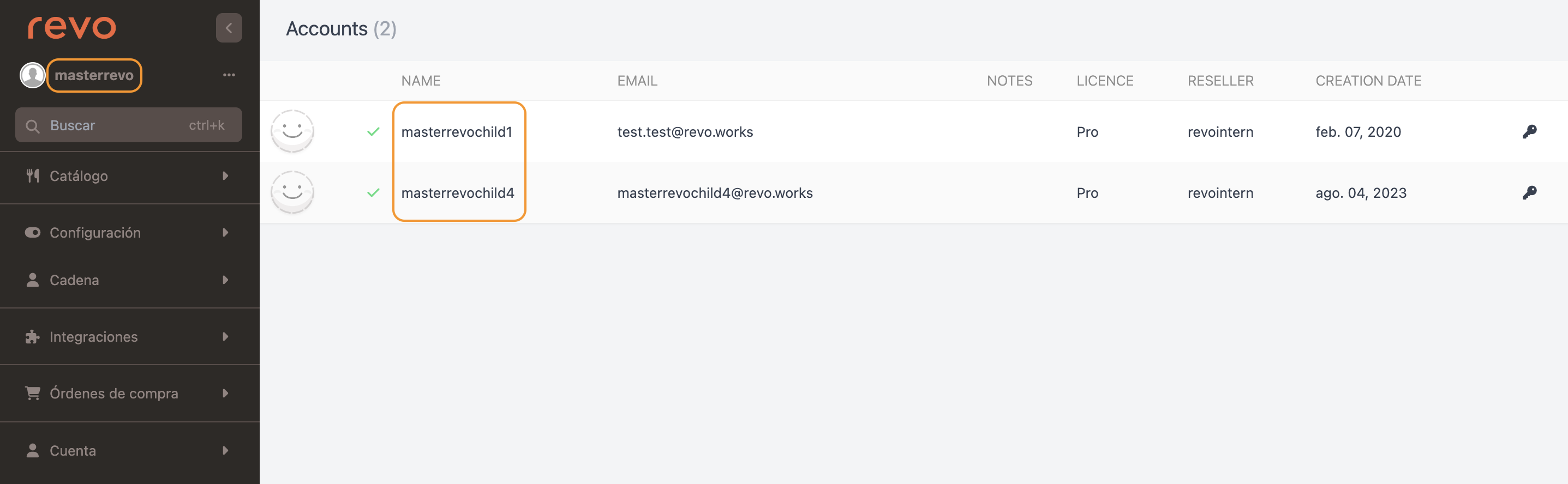
On the main screen you will see the account name on the left and the list of all associated establishments in the centre. You can access any of them by clicking the icon.
4. BACK-OFFICE MODULES
The back-office of a master account contains the same modules as child accounts, plus the exclusive Chain module. Everything you configure here in Catalogue and Configuration is what will be synchronised to the establishments.
CATALOGUE
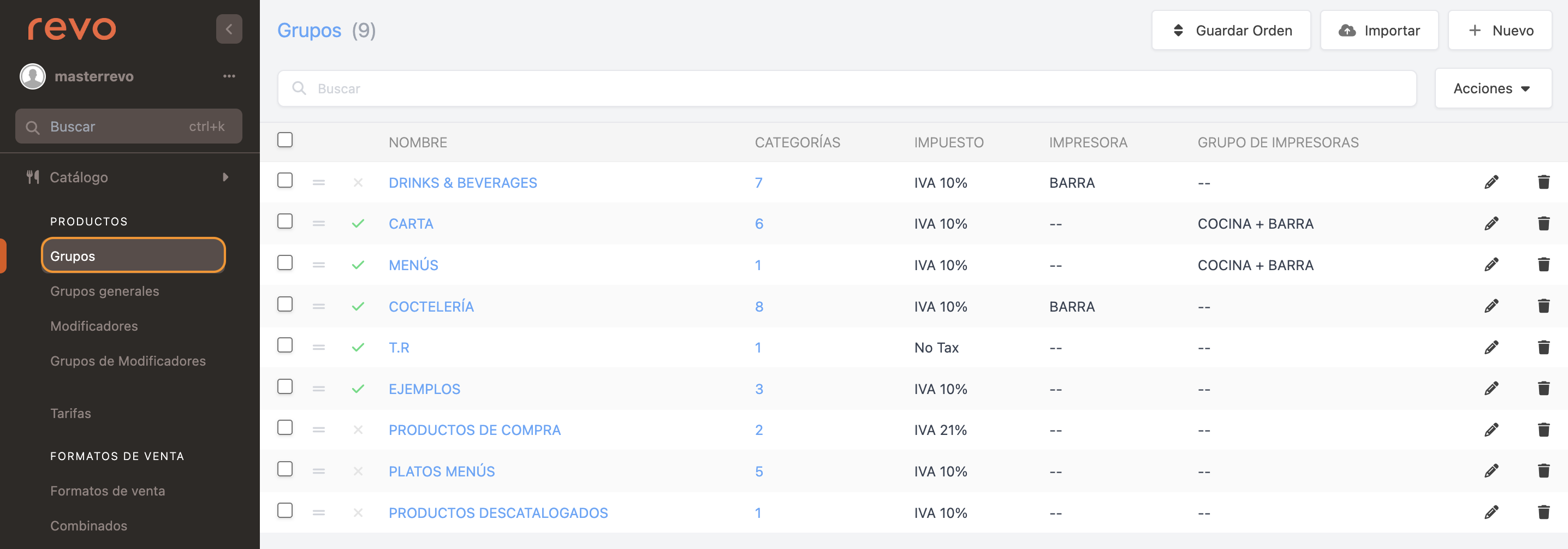
Configure everything related to your products here. This is the single repository that synchronises with the rest of the accounts. Includes:
- Groups / Categories / Products
- General Groups
- Modifiers / Modifier Groups
- Rates
- Sale Formats
- Combos
- Favourites / List
Note: Product prices and the active/inactive status of items are managed independently in each child account. To propagate them from the master, use the options in Chain → Synchronise. More information in the article Synchronisation of the master account.
CONFIGURATION
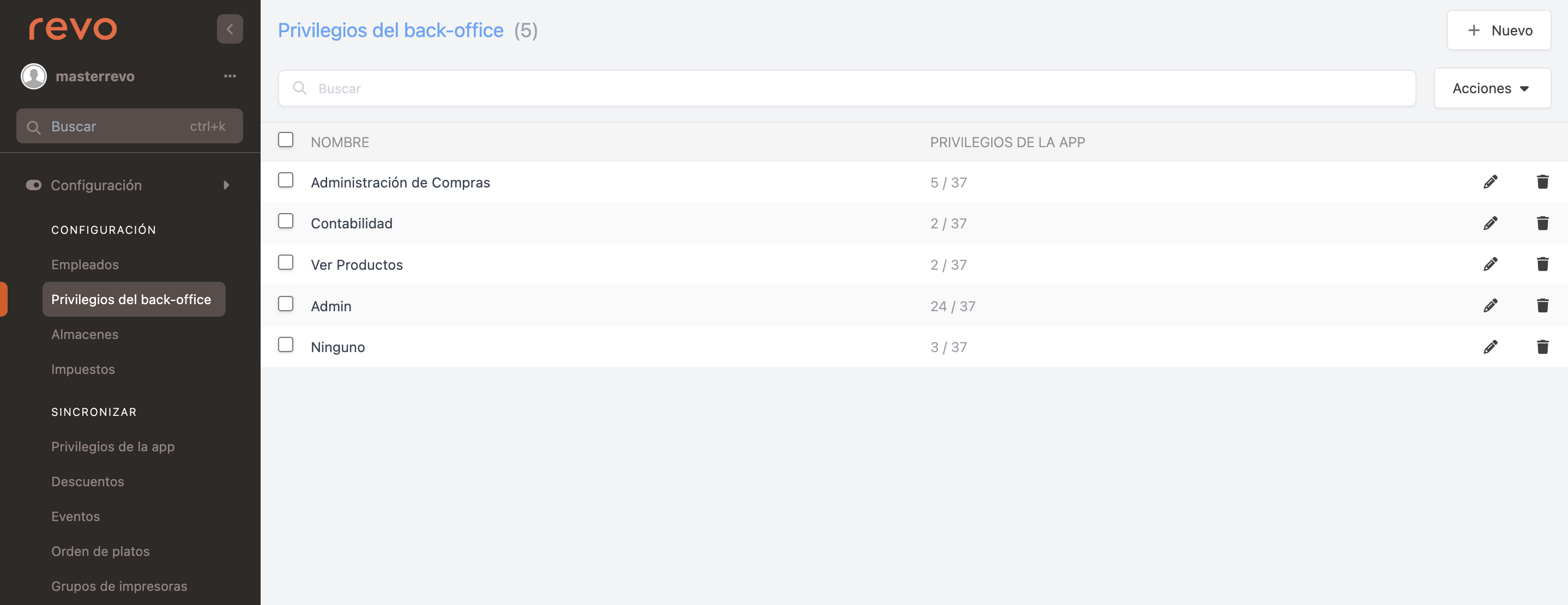
Define all the settings you want to synchronise to the child establishments here. Includes:
- Employees
- Back-office Privileges
- Warehouses
- Taxes
- App Privileges
- Discounts
- Events
- Dish Order
- Printer Groups
Note: For these settings to synchronise to child accounts, you must enable each category in Chain → Advanced Configuration. See the article Master: Advanced Configuration to understand what enabling each option implies before synchronising.
PURCHASE ORDERS
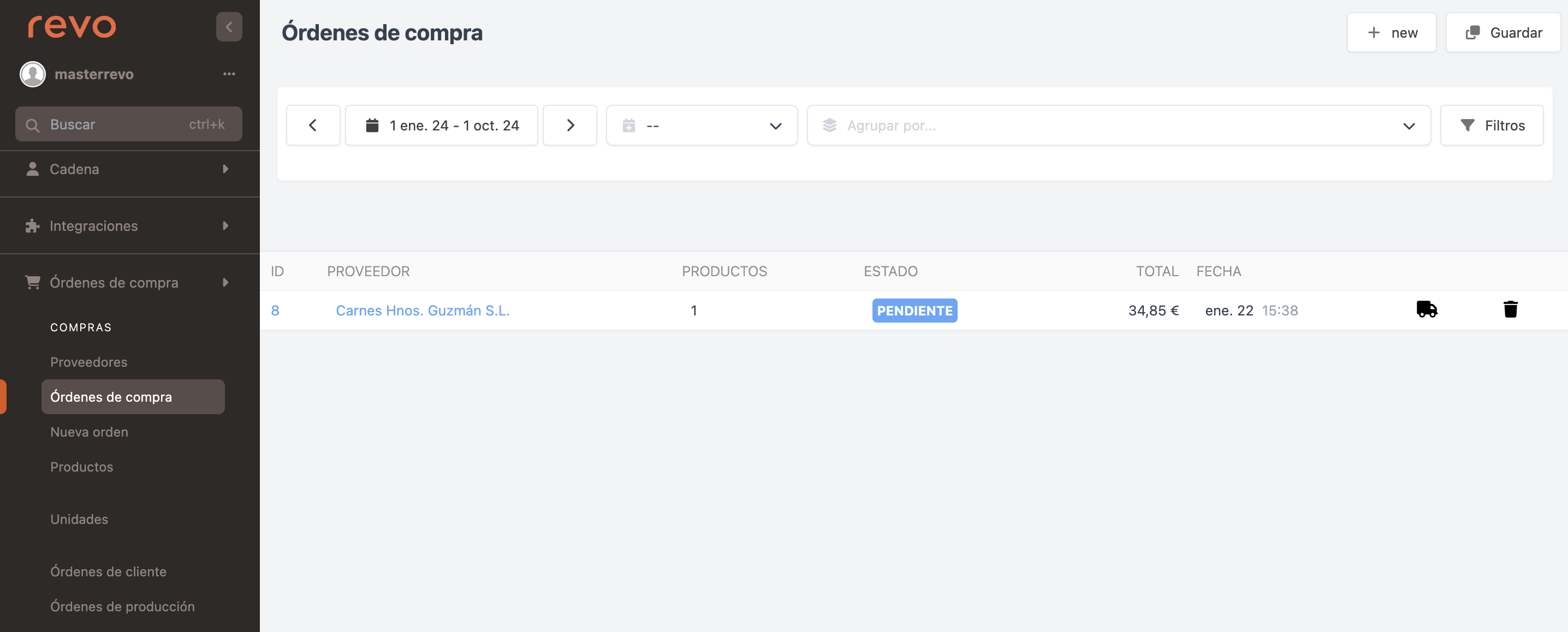
Manage everything related to supplier purchases here. More information in this article.
ACCOUNT
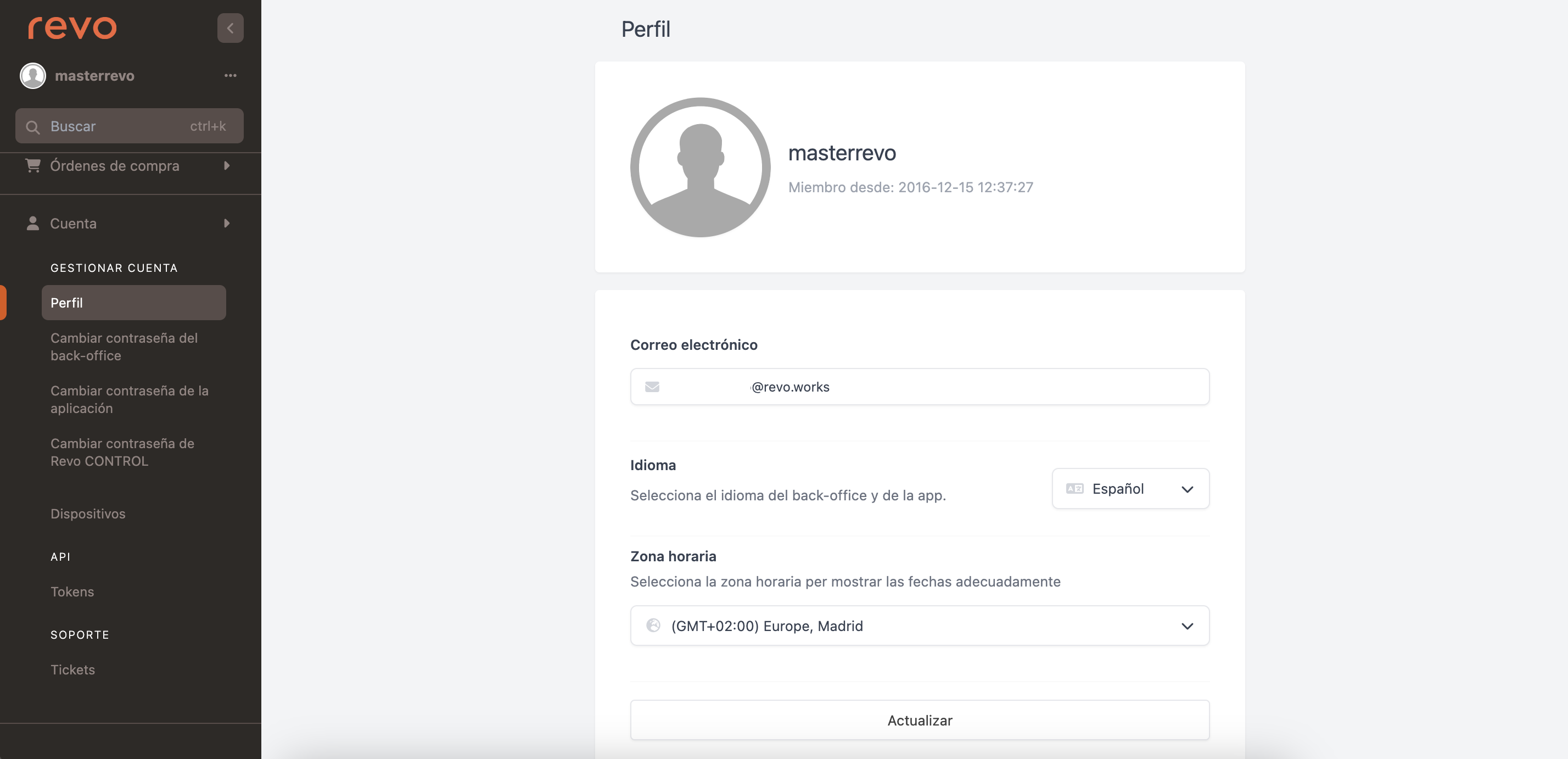
Manage your account details here. Includes:
- Profile
- Change back-office password
- Change application password
- Change Revo CONTROL password
- Devices
- Tokens
5. CHAIN MODULE: OPTIONS AND LISTINGS
This is the exclusive module for master accounts. From here you manage synchronisation and view aggregated data from all establishments.
CHAIN
-
Accounts: List of all your establishments. Click to access any account without entering credentials.
There is no limit to the number of child accounts you can associate with a master.

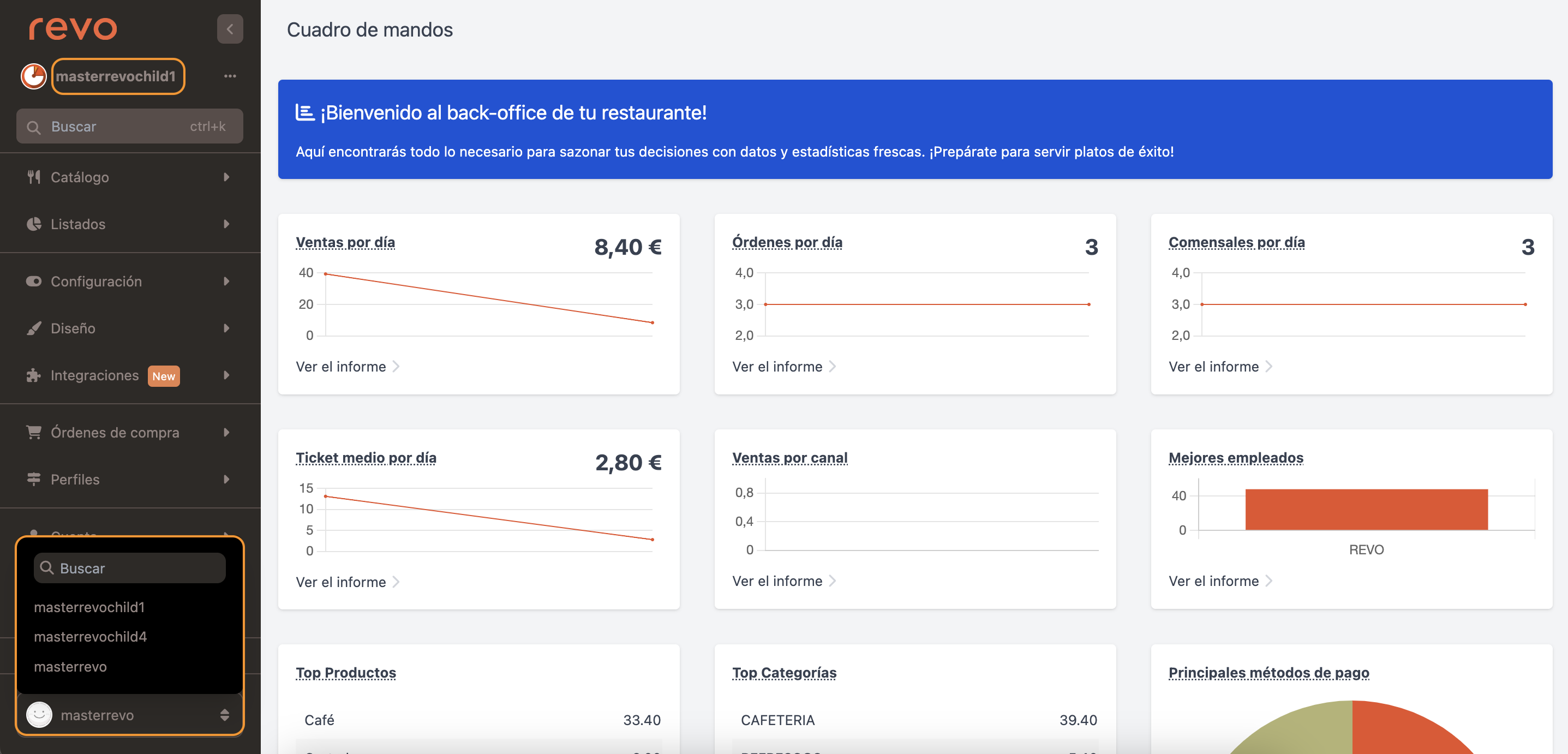
Once logged into a child account, you can switch to another by clicking on the establishment name in the list. This is useful when you need to check the same section (a configuration, a report) across several establishments quickly.
-
Groups: Comparative catalogue view. Edit prices and activate/deactivate products in each child account from a single screen. More information in the article Synchronisation of the master account.
-
Synchronise: Every time you make a change to products or settings, synchronise so the changes take effect in the child accounts. More information in the article Synchronisation of the master account.
-
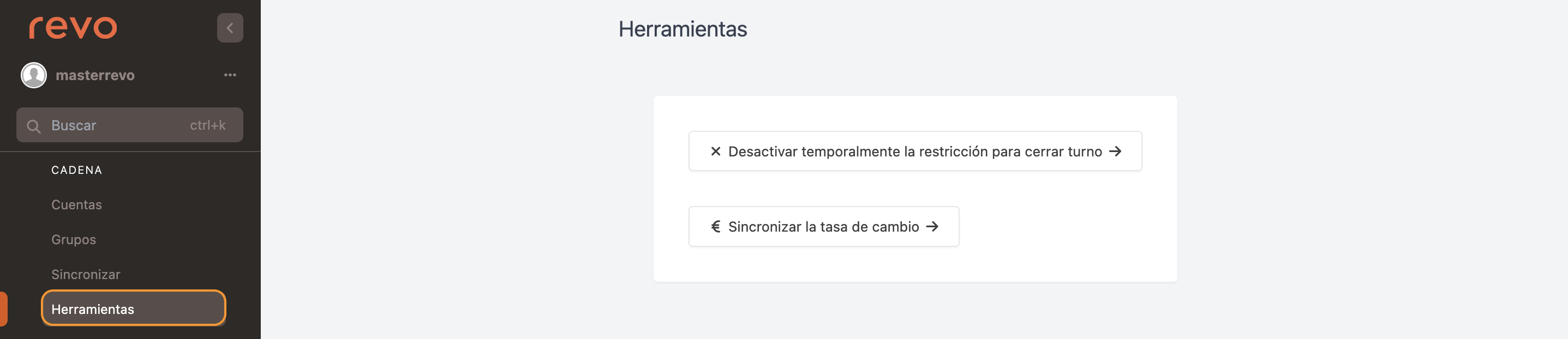
Tools: Edit the exchange rate across all accounts or temporarily disable the shift close restriction.
ACCESS LISTINGS
These listings show aggregated data from all establishments. For more specific information on a single establishment, access that child account directly.
- Sales: Total sales from all establishments. Use filters to narrow the period or establishment.
- Categories: Sales broken down by product category across all establishments.
- Products: Sales broken down by product across all establishments.
- Menu Products: Sales of products within combo menus.
- Hours: Sales distribution by time slot across all establishments.
- Payments: Totals grouped by payment method across all establishments.
- Shifts: List of shift numbers per establishment.
- Summary: Automatically downloads a file with an executive summary of the main categories.
SHARED WAREHOUSES
- Warehouses: Total stock value from all establishments.
- Inventory: Inventory records made through Revo STOCK pending approval. More information here.
- Stocks: Stock listing of the master account.
- Stock Movements: Stock movement listing from all establishments.
SYSTEM LOGS
- Back-office Activity Log: View the back-office activity logs of the master account from the last 15 days.
6. ACCESSING CHILD ACCOUNTS
From the master account you can access the back-office of any child account without knowing its password. This feature is called impersonation.
How to access:
- Go to Chain → Accounts.
- Click the icon next to the establishment you want to access.
- The back-office switches to that child account's context: you will see its catalogue, invoices, shifts and own configuration.
How to return to the master: log out of the child account. You will automatically return to the master session.
Quick switch between child accounts: once inside a child account, you can switch to another by clicking on the establishment name in the side list, without going back to the master main screen.
Note: Impersonation access is recorded in the back-office activity log.
7. RULES AND SYSTEM LIMITS
WHAT EACH CHILD ACCOUNT MANAGES INDEPENDENTLY
Although the master centralises configuration, the following elements are always owned by each child account and are not overwritten by standard synchronisation:
- Product prices: each child keeps its own prices. To update them from the master use the "Rate synchronisation" or "Apply base price" options in the Synchronise panel.
- Active/inactive status of items and modifiers: each child decides what is active. To synchronise this use "Asset synchronisation".
- Own operations: orders, invoices, cash shifts and payments are completely independent in each child and are never synchronised.
- Physical printers: the assignment of physical printers within groups is kept in each child; only the group name is synchronised.
A CHILD CAN ONLY BELONG TO ONE MASTER
An establishment cannot be linked to two master accounts at the same time. If you need to reorganise the structure of your chain, contact your distributor.
SYNCHRONISATION IS UNIDIRECTIONAL
Changes always flow from master → child. Modifying data directly in a child account (employees, discounts, privileges) may be overwritten in the next synchronisation if that data type is enabled in the advanced configuration.
PAYMENT METHODS: ENABLE BEFORE INVOICING
Payment method synchronisation cannot be enabled if child accounts already have invoices generated. Configure this option before the establishments begin operating.
IMPORTANT: If you already have invoices and need to enable payment method synchronisation, contact your distributor before making any changes.