DESCRIPTION
Service capacity allows you to limit the number of services you can accept during specific time slots, regardless of how many tables you have available. This functionality acts as an additional operational filter that complements the physical capacity of your restaurant.
When should you use it?
- Your kitchen cannot prepare all dishes at the same time
- You have reduced staff and need to control customer flow
- You offer special menus that require specific preparation time
- You want to stagger arrivals to avoid saturation
IMPORTANT: Service capacity does NOT replace table configuration. It works as an additional control layer on top of normal capacity.
INDEX
1. GENERAL SCREEN 1.1 Interface elements 2. BACK-OFFICE CONFIGURATION 2.1 Create an individual capacity slot 2.2 Automatic validations 2.3 Manage exceptions 2.4 Edit or delete slots 3. PRACTICAL EXAMPLES 3.1 Example 1: Limited kitchen 3.2 Example 2: Sunday brunch with shifts 3.3 Example 3: Special event 3.4 Frequently Asked Questions 3.5 Tips and best practices
1. GENERAL SCREEN
To access the service capacity module, go to the [**back-office**](https://revoxef.works) and navigate to:Configuration → Services → Service capacity
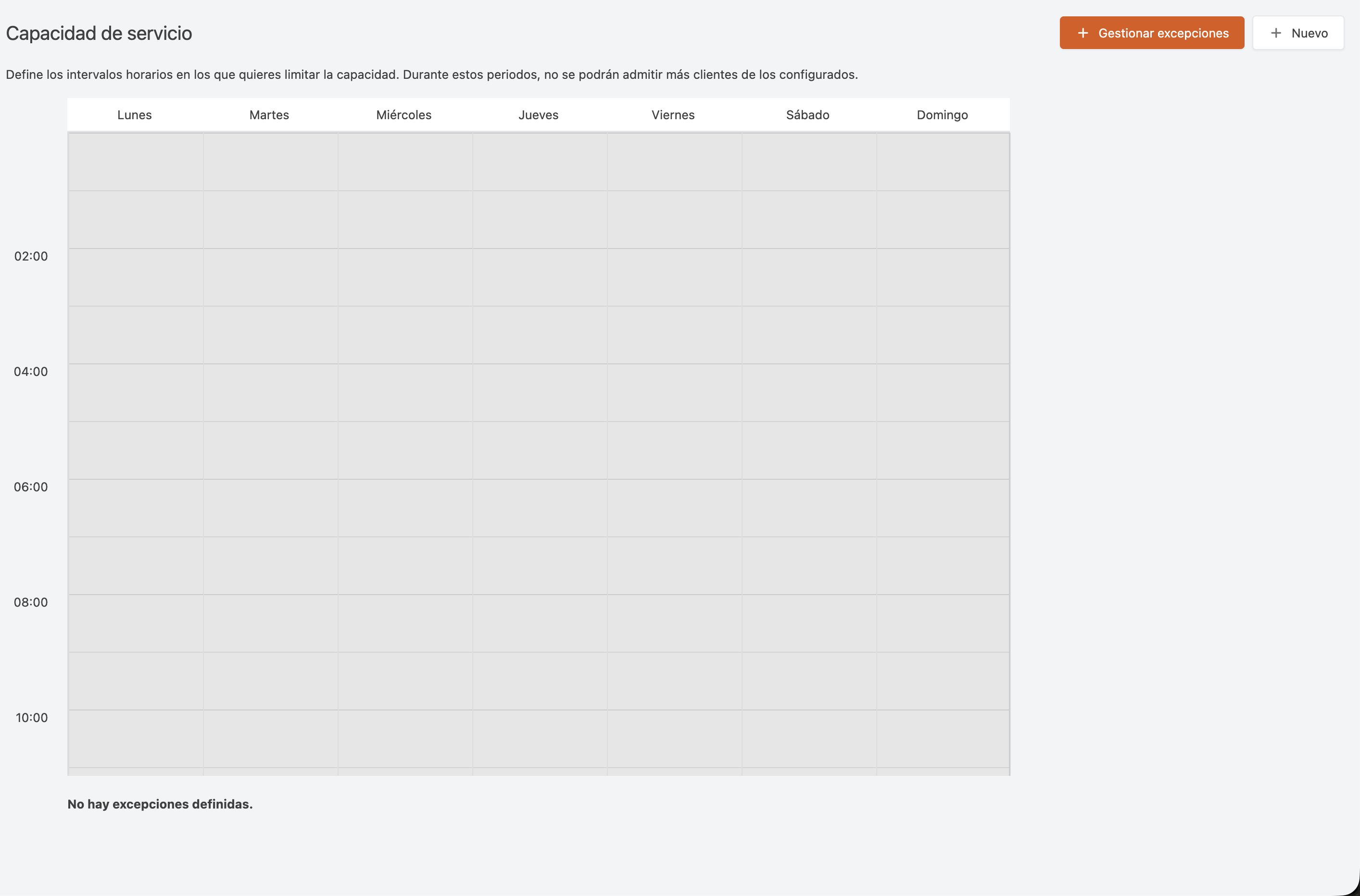
The main screen displays a weekly calendar divided into time slots where you can configure capacity limits.
INTERFACE ELEMENTS
**Main buttons:** - **+ Manage exceptions**: Configure service capacity for specific dates (*Christmas, special events*) - **+ New**: Create new weekly service capacity slotsWeekly calendar:
- Grey areas: Closed hours (you cannot create slots)
- Orange blocks with a number: Active service capacity slots (the number indicates the maximum capacity)
- Empty spaces: No capacity restriction (limited only by tables)
Bottom information:
- Upcoming exceptions: Shows dates with special configurations
2. BACK-OFFICE CONFIGURATION
CREATE AN INDIVIDUAL CAPACITY SLOT
**Step 1:** Click on **+ New** or directly on an empty cell in the calendar.Step 2: Fill in the pop-up form:
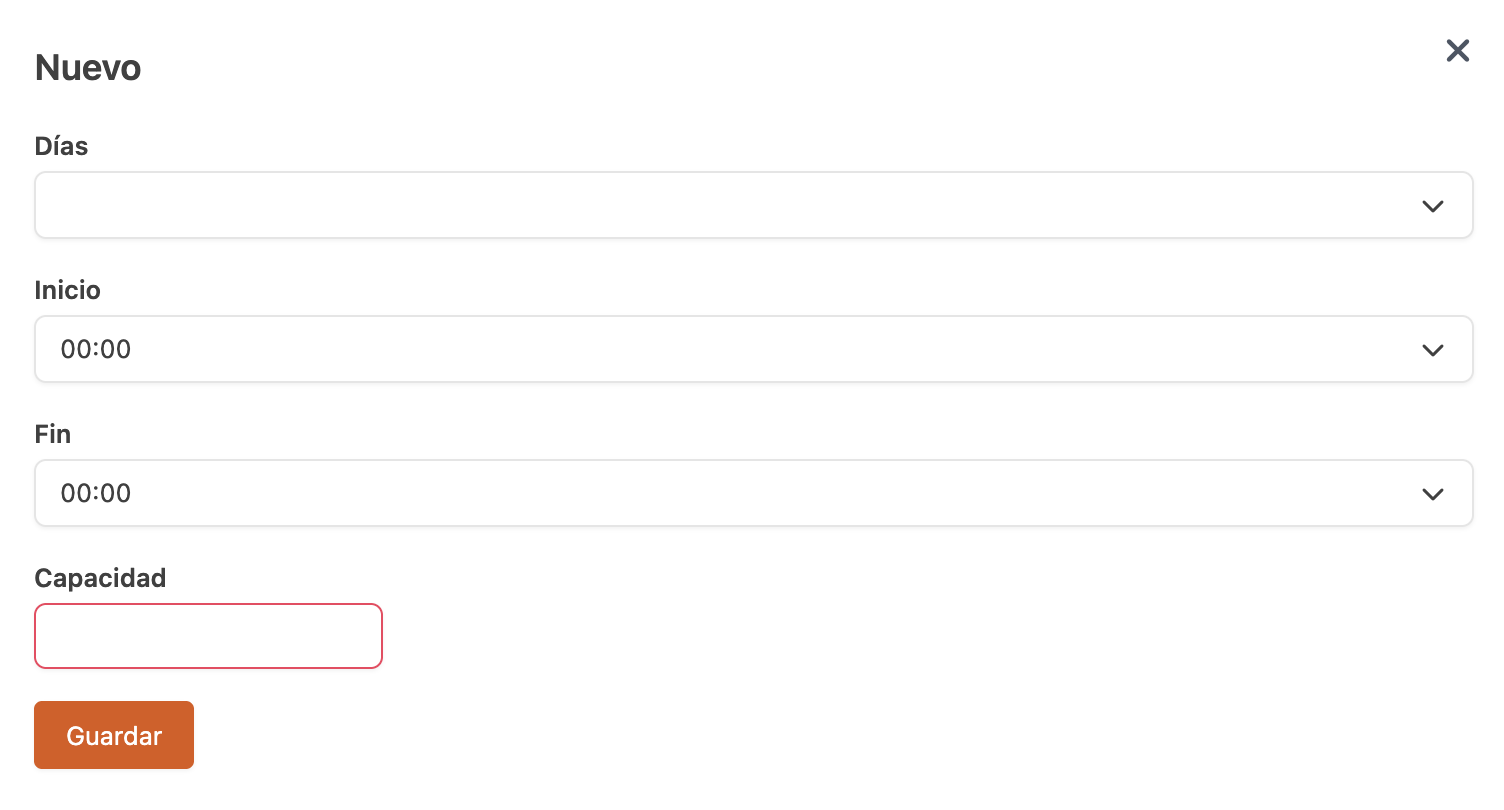
- Days of the week: Select one or multiple days (Monday, Tuesday, etc.)
- Start time: Time when the restriction begins (e.g., 13:00:00)
- End time: Time when the restriction ends (e.g., 15:00:00)
- Capacity: Maximum number of people who can start service during this time slot
Step 3: Click Save.
The capacity slot will appear as an orange block in the calendar with its capacity number.
IMPORTANT: If you select multiple days, the system will create an individual capacity slot for each selected day.
AUTOMATIC VALIDATIONS
The system checks that: - ✓ **No overlap**: You cannot create two slots that intersect on the same day - ✓ **Within schedule**: The slot must be fully within opening hours - ✓ **Valid time**: End time must be later than start timeIf a validation fails, you will see a red error message at the top of the screen.
MANAGE EXCEPTIONS
**Exceptions** allow you to configure service capacity for specific dates that override the normal weekly rules.When should you use exceptions?
- Special events (Christmas Eve dinner)
- Holidays with special menus
- Days with reduced staff
- Private events occupying part of the restaurant
Step 1: Click on + Manage exceptions.
Step 2: A yearly calendar will open. Click the date you want to configure as an exception.
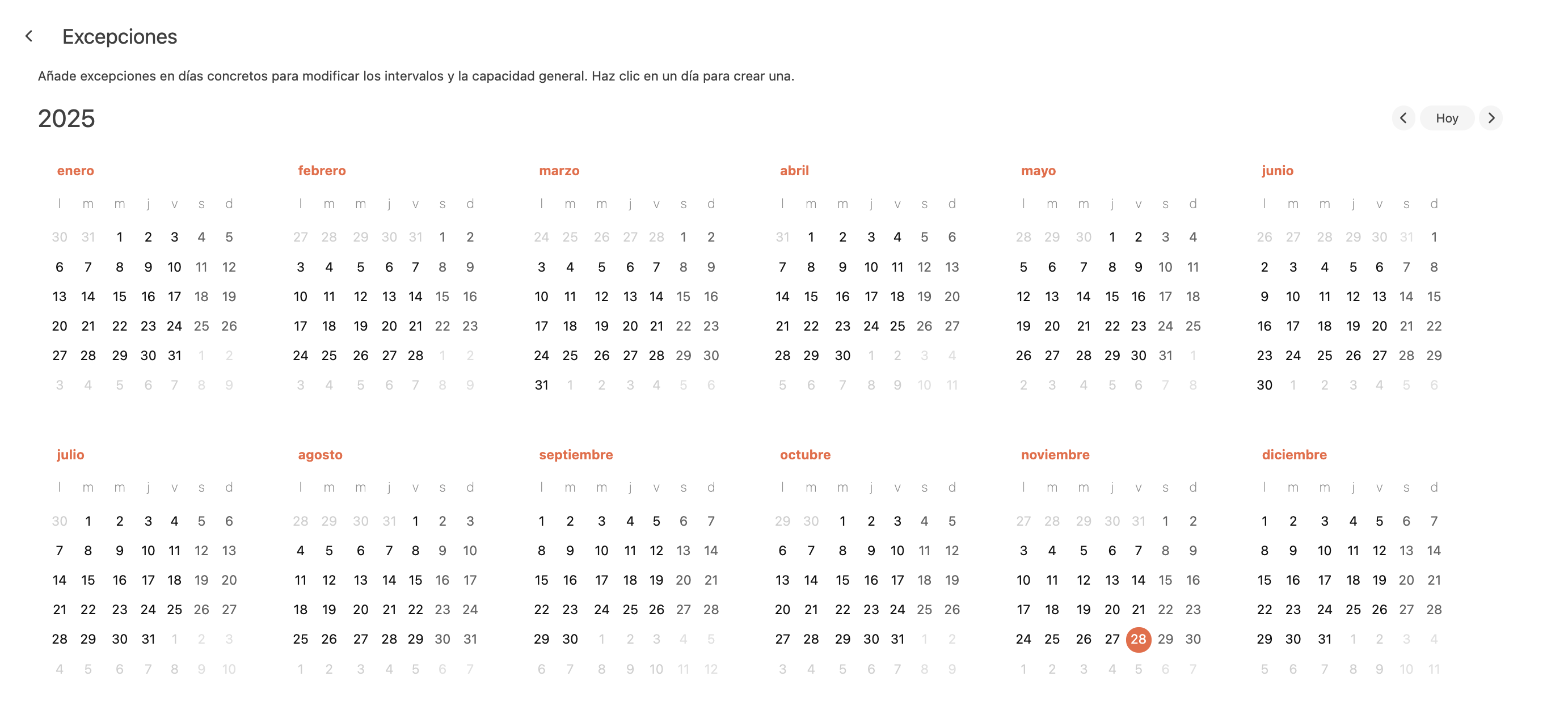
Step 3: Fill out the exception form:
- Date: Automatically filled (not editable)
- Name (optional): Descriptive label (e.g., "Christmas Eve – Special Menu")
Step 4: Configure service capacity slots for that date by clicking on the time slots in the lower calendar.
Step 5: Click Save.
The exception will appear in the “Upcoming exceptions” list on the main screen.
IMPORTANT: Service capacity settings for an exception completely override the weekly rules for that specific date.
EDIT OR DELETE SLOTS
**To edit:** 1. Click on the orange capacity slot block 2. Select **Edit** 3. Modify the necessary values 4. Click **Save**To delete:
- Click on the orange capacity slot block
- Click the X on the top-right corner of the block
- Confirm deletion
3. PRACTICAL EXAMPLES
EXAMPLE 1: LIMITED KITCHEN
**Situation:** - You have 30 tables (physical capacity: 120 people) - Your kitchen can only prepare 60 dishes per hour - You have 4 waiters (each can handle up to 15 guests)Recommended configuration:
Monday to Friday:
- 13:00–14:00: Capacity 60 people
- 14:00–15:00: Capacity 60 people
- 15:00–16:00: Capacity 40 people (reduced at the end of service)
Result: Even if you have physical space for 120 people, you will only accept 60 new reservations per hour, protecting service quality.
EXAMPLE 2: SUNDAY BRUNCH WITH SHIFTS
**Situation:** - You only offer brunch on Sundays with a tasting menu - Each service lasts 2 hours - You want two shifts: 11:00 and 13:30Recommended configuration:
Sunday:
- 11:00–11:30: Capacity 40 people (first shift)
- 11:30–13:00: Capacity 0 people (block new entries)
- 13:30–14:00: Capacity 40 people (second shift)
- 14:00–16:00: Capacity 0 people (block new entries)
Result: You only accept reservations at 11:00 and 13:30. All other time slots are blocked.
EXAMPLE 3: SPECIAL EVENT
**Situation:** - On December 24th you have a private corporate dinner from 20:00 to 00:00 - You have booked 60 seats for the event - 40 seats remain available for the general publicRecommended configuration:
Create an exception for 24/12/2025:
- Name: "Christmas Eve – Private Event"
- 19:00–20:00: Capacity 40 people (public dinner before event)
- 20:00–00:00: Capacity 20 people (only a few tables available)
Result: Before the event you accept 40 public reservations. During the event, only 20 seats are available for the general public.
FREQUENTLY ASKED QUESTIONS
**Do service capacity limits affect available tables?**No. Service capacity is an additional filter. The system first checks table availability and then checks the capacity slot.
What happens if I don’t configure service capacity for a time slot?
That time slot will have no capacity restriction. Only the normal table-based limitation will apply.
Can I see how many seats are occupied in real time?
There is currently no real-time counter in the service capacity screen. You must go to Reservations → Calendar to see confirmed reservations per time slot.
Does service capacity affect phone reservations?
Yes, if the operator uses the back-office to create the reservation. However, operators with special permissions can override a capacity slot.
TIPS AND BEST PRACTICES
IMPORTANT: This feature is only available from the back-office. Service capacity management from the app will be available soon.