The offline mode with a main device coordinates all the devices in the venue through an iPad designated as the main device.
The main device acts as the reference for the connection status. Client devices check its status to know whether to work online or offline, which keeps all devices coordinated.
If your devices work independently, see the offline mode without a main device.
See what happens while there is a connection and how the main device and clients react when the network becomes unavailable.
1How it works
One of the iPads acts as the main device. The other devices, the clients, check the main device to know the connection status.
Select the connection status to see how the devices behave:
When the main device has a connection
While the main device has a connection, all devices work online as usual.
- Clients check the status of the main device.
- When they detect it has a connection, clients also work online.
- Orders go through the main device first before being uploaded to the server.
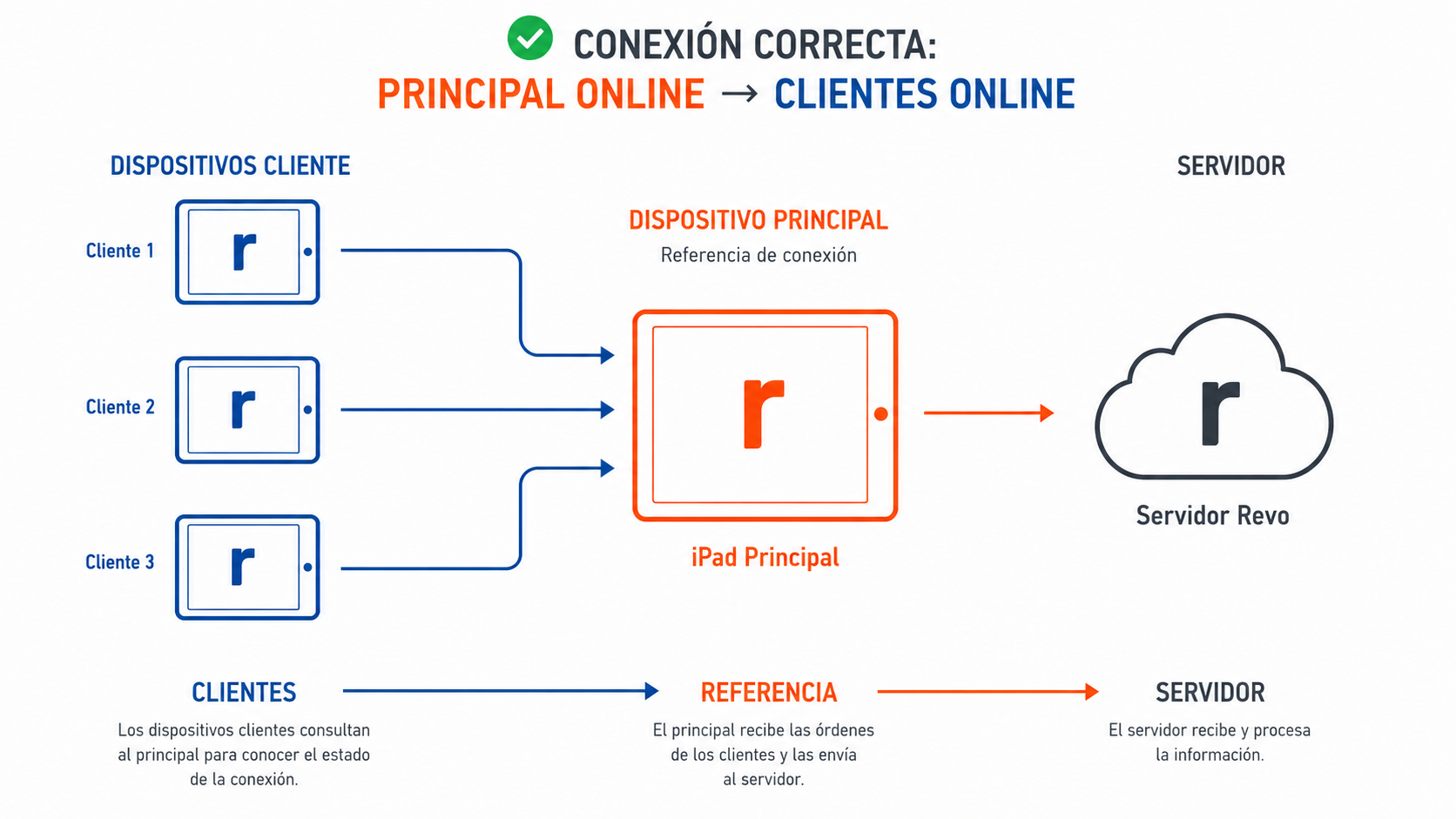
While the main device has a connection, all devices stay coordinated and work online as usual.
When the main device loses the connection
If the main device loses the connection, it switches to offline mode. Clients check its status and switch too, in a coordinated way.
- The main device detects the loss of connection and switches to offline mode.
- Clients check its status and also switch to offline mode.
- The main device can keep working with direct sales and tables.
- Clients can use POS and virtual tables.
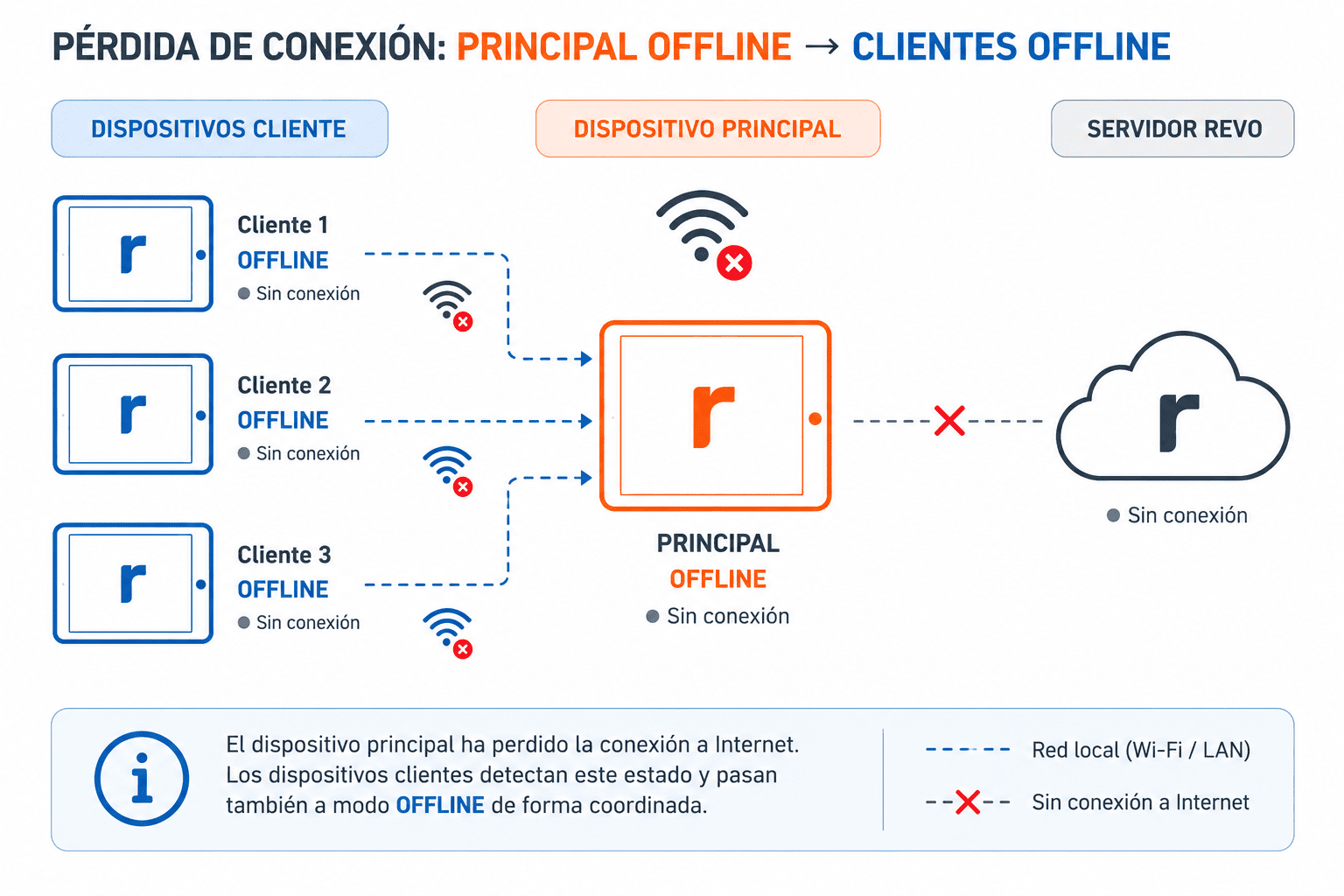
While offline, clients keep checking the main device's status to detect when it gets the connection back.
The main device must stay on, with Revo XEF in the foreground and connected to the local network.
Check the version, the local network and the IP address before using this offline mode.
2Requirements and setup
To use this mode you need:
All devices on Revo XEF version 5.4 or later.
All devices connected to the same local network.
The main iPad with a fixed or reserved IP.
Devices with a version earlier than 5.4 will use the standard offline mode and will not take part as clients.
Set up the main device
Enter in the back-office the IP of the iPad that will act as the main device.
- Go to Settings → Offline mode.
- Find Main device IP.
- Enter the IP address of the main iPad.
- Press Save.
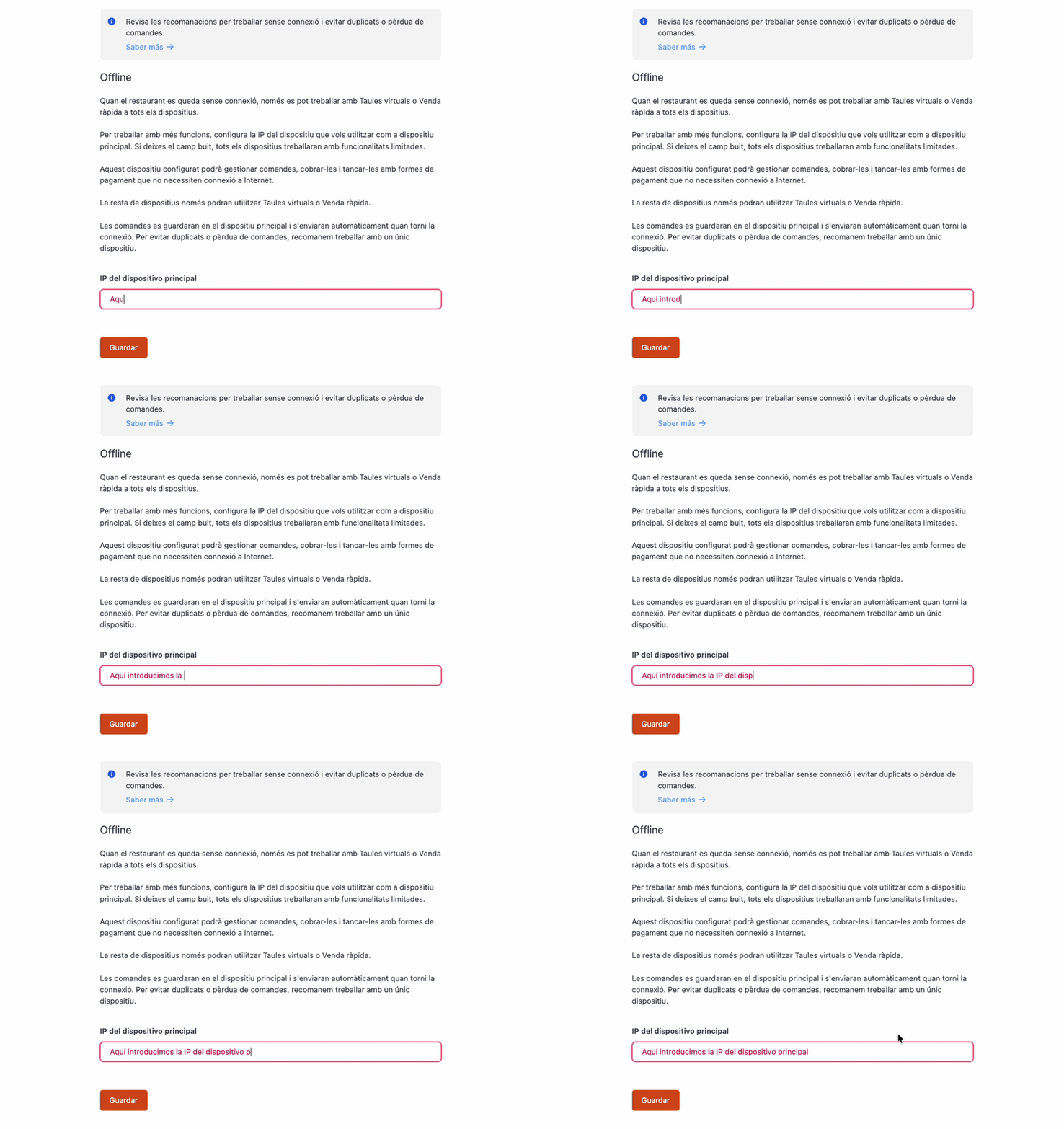
Find and fix the IP address
On the iPad, go to Settings → Wi-Fi and tap the network's info icon. You will find the IP address there.
Make sure you fix or reserve it so it does not change.
If the IP changes, clients may no longer find the main device correctly.
The available functions change depending on whether you are working on the main device or on a client device.
3What you can do in offline mode
Select the device type to see the available functions:
Main device
It can keep working with direct sales and tables, except for functions that need internet.
You can
- Create and edit table orders.
- Make direct sales from POS.
- Take payments with methods that do not need internet.
It depends
- Print in the kitchen, depending on how the peripherals are connected.
You cannot
- Use Gift card.
- Use external integrations, such as bookings or delivery.
Client device
Clients also switch to offline mode and can keep operating with limited functions.
You can
- Make direct sales from POS.
- Create and operate virtual tables.
- View open orders in read-only mode.
It depends
- Print in the kitchen, depending on how the peripherals are connected.
You cannot
- Create or edit orders for real tables.
- Use external integrations, such as bookings or delivery.
Virtual tables and sales made from POS sync when the main device gets the connection back.
Kitchen printing: you can send tickets to printers or other peripherals if the iPad and the devices are connected to the same local network. If they rely on cloud services, printing will not be available while you work offline.
The main device syncs pending orders first, and clients then return to online mode.
4Recovering the connection
When the main device gets the connection back, the return to online mode is coordinated:
- The main device detects that it has a connection again.
- It syncs the pending orders.
- When syncing is complete, it returns to online mode.
- Clients detect its status and also go back online, usually in less than 1 minute.
Switching between online and offline mode is handled automatically.
See how devices recover the connection
The main device recovers first and, a few moments later, the client detects its new status.
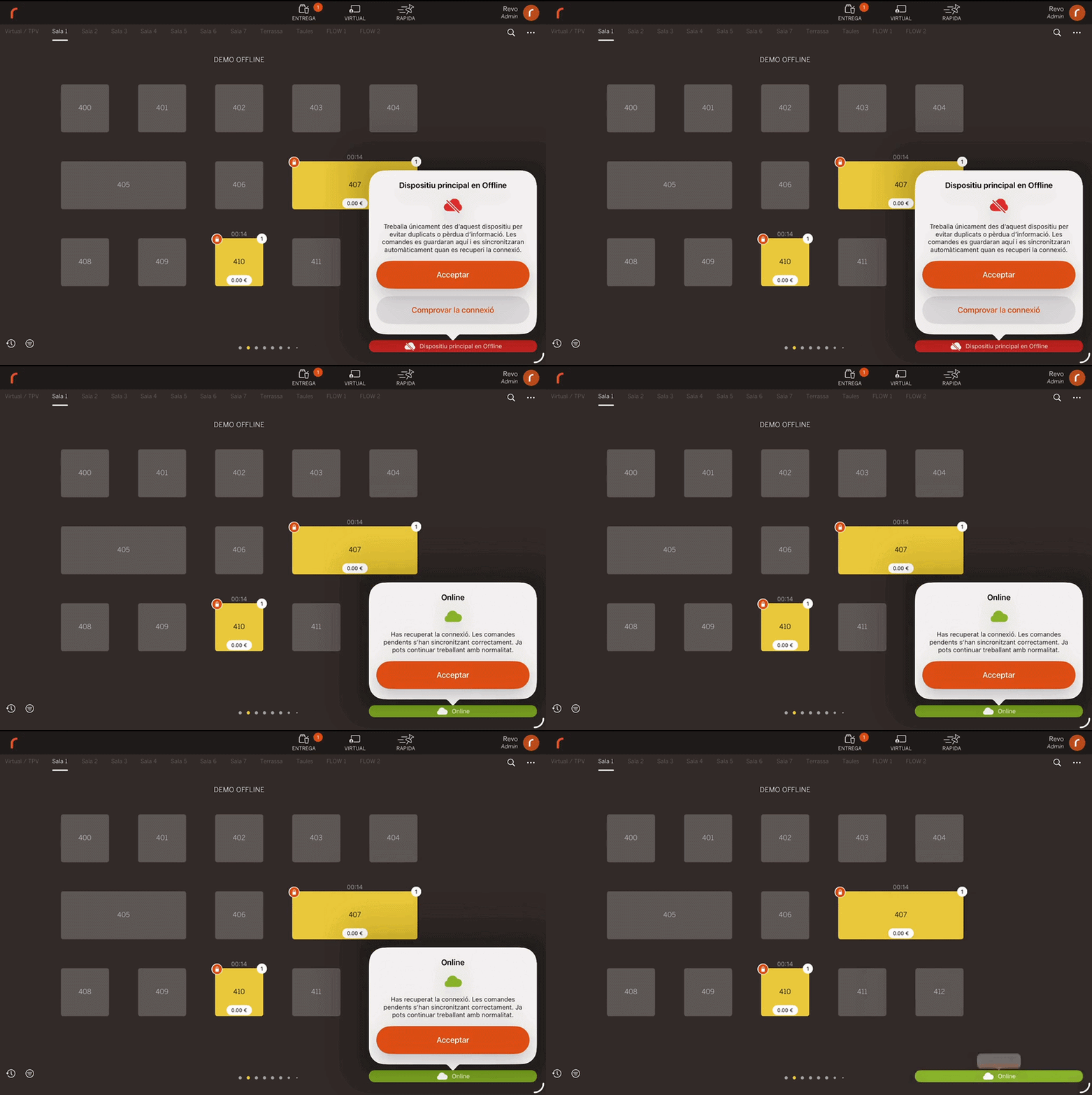
It recovers the connection.It syncs the pending orders.
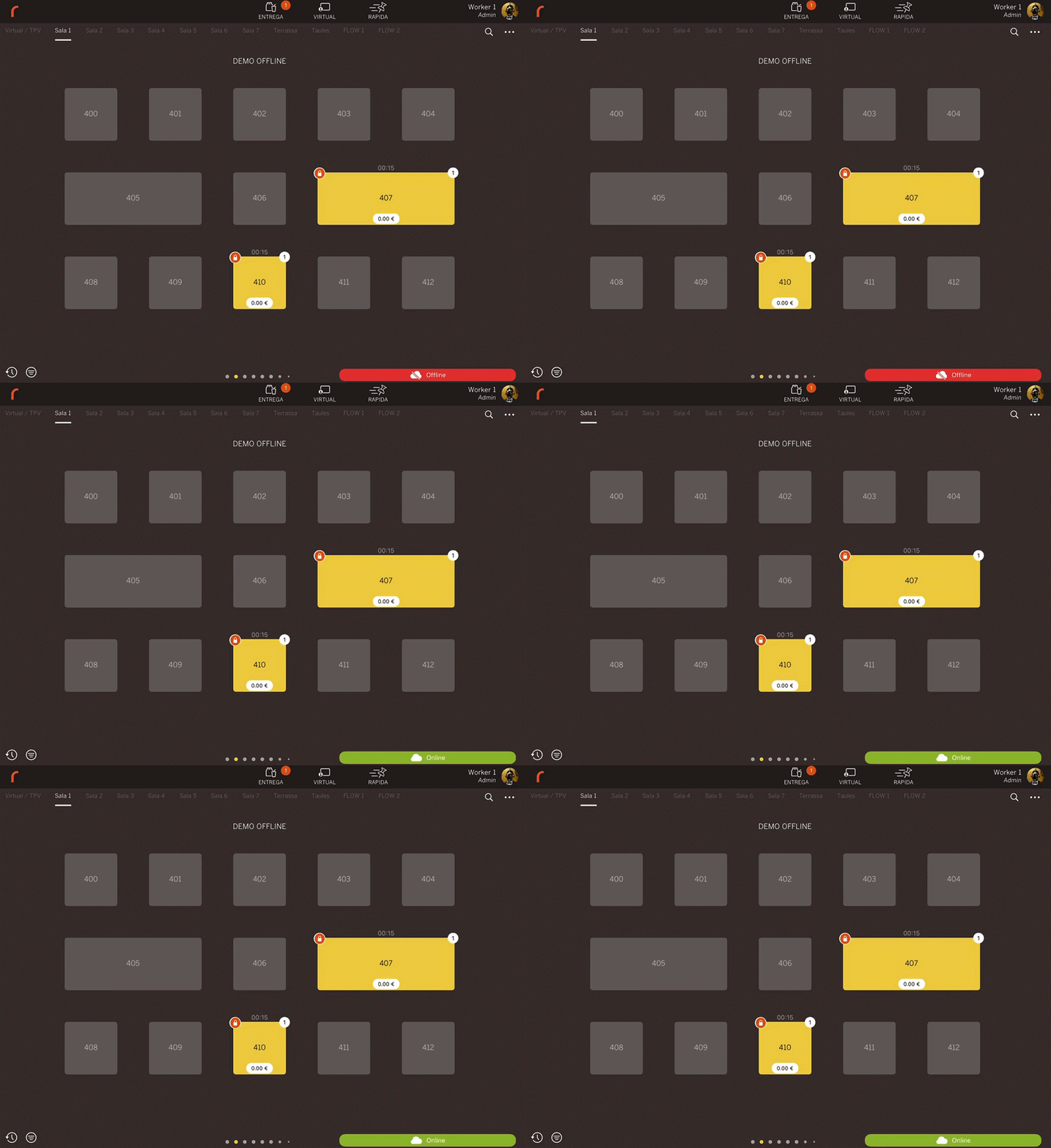
It detects the recovery.It checks the main device's status and goes back online.
Clients do not go back online until the main device has recovered the connection and finished syncing.
See the recommended checks when a client does not detect the main device or an order does not sync.
5Troubleshooting
See the following solutions if you have problems with offline mode with a main device.
Clients do not go back online
- Check that the main device is online.
- If it has pending orders, wait for it to finish syncing.
A client does not detect the main device
- Check that the configured IP matches the current IP.
- Check that all devices are connected to the same local network.
- Confirm that the IP is still fixed or reserved.
- If the problem persists, restart the app on the affected device.
Some orders could not be synced
In exceptional cases, some orders may remain pending. Review the list and discard them only if necessary.
Before discarding an order, write down its contents so you can create it again.