This feature is only available in the PRO version.
Description
Scheduled campaigns allow actions to be executed automatically on a specific date or when a predefined time-based condition is met.
In this example, we will configure a birthday campaign that sends an SMS to the customer and automatically assigns a gift on their birthday.
Prerequisites
Before creating the campaign, make sure you have:
- A communication template to define the message that the customer will receive.
- A previously configured gift that will be automatically assigned to the customer.
Create the Scheduled Campaign
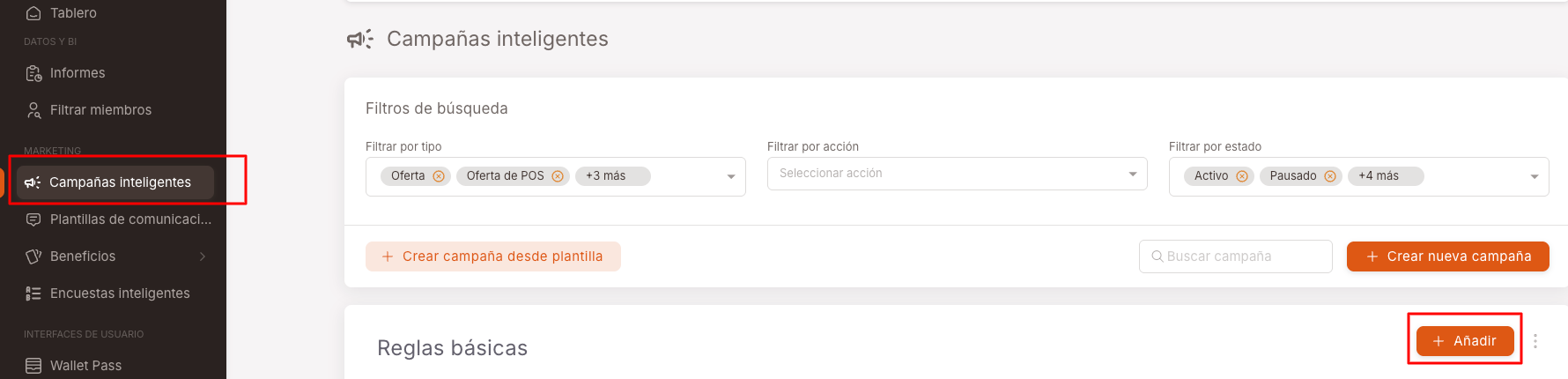
1. Access Smart Campaigns
Go to the Smart Campaigns menu and click Add.
2. Create the Campaign
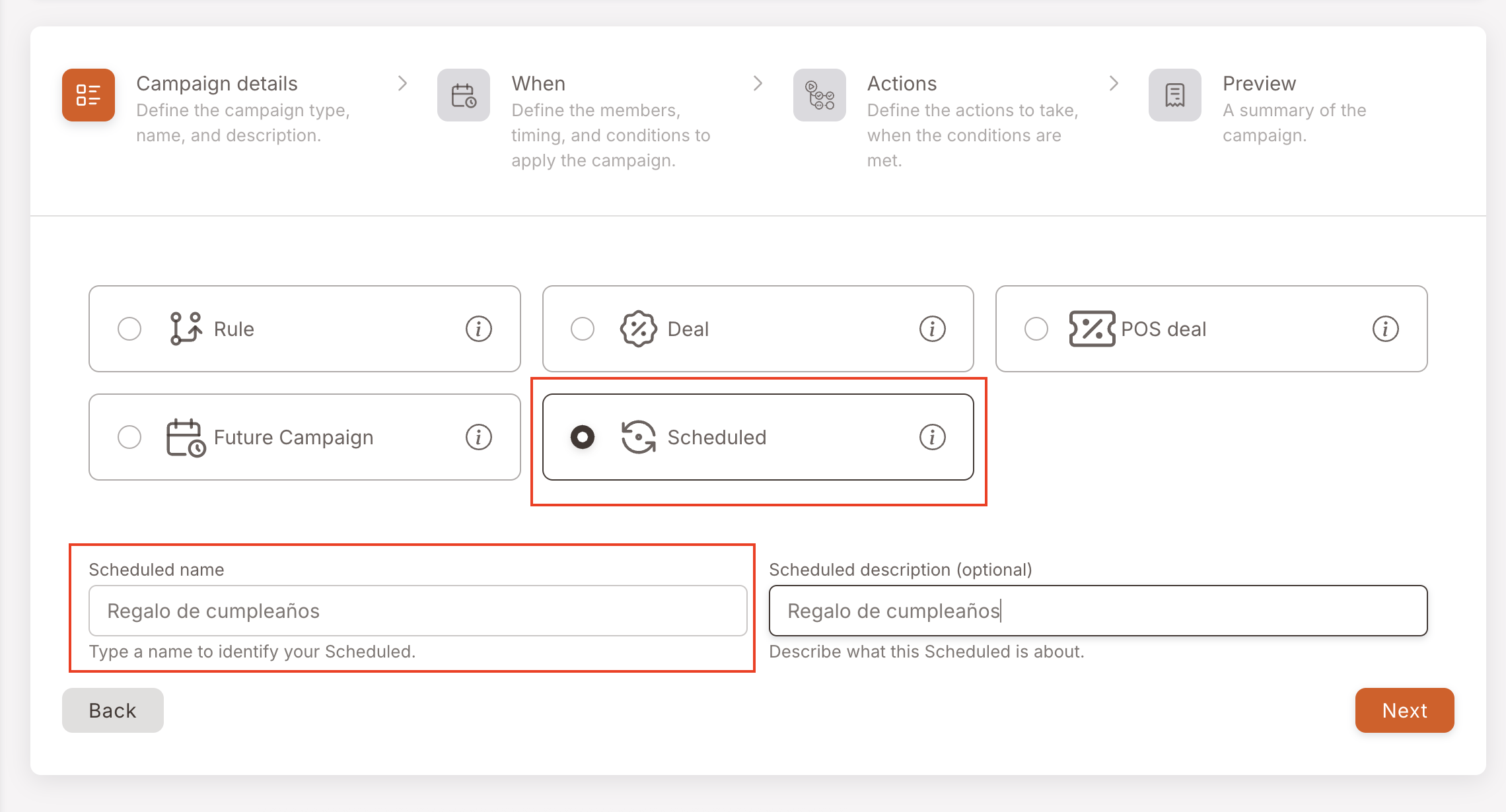
Configure:
- Campaign type: Scheduled
- Name: Birthday Campaign
3. Select Members
Select the members to whom you want to apply the campaign.
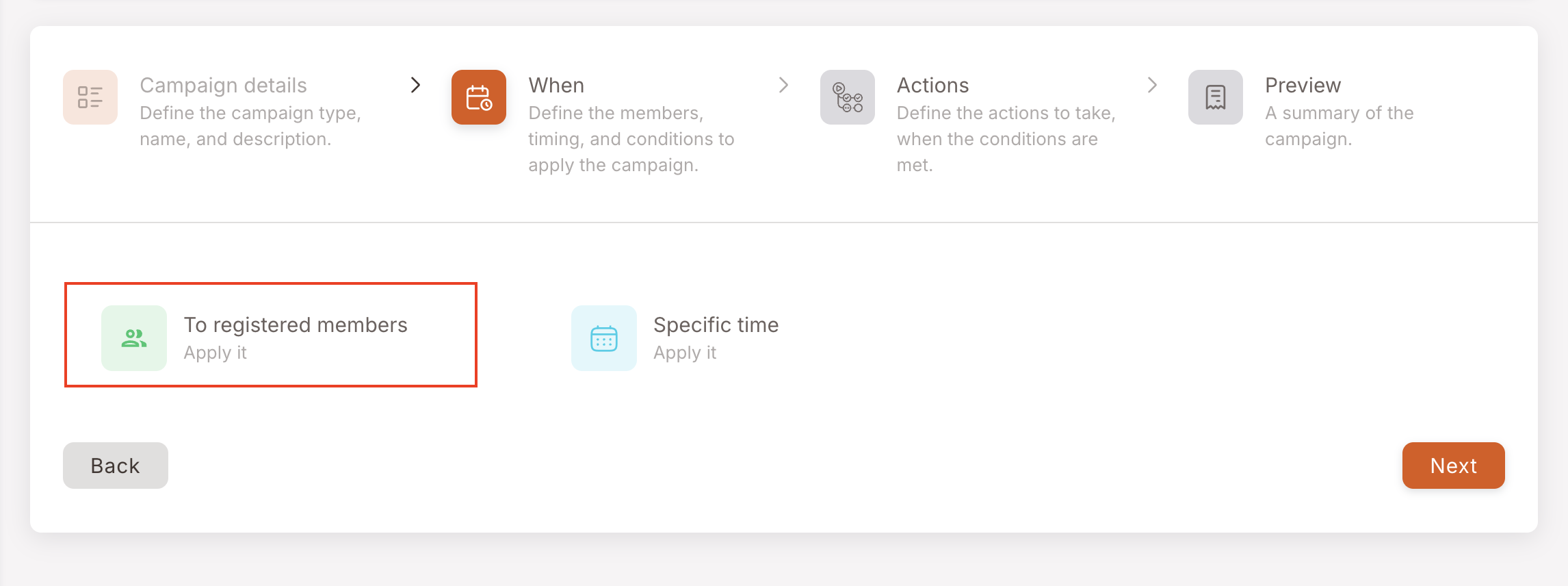
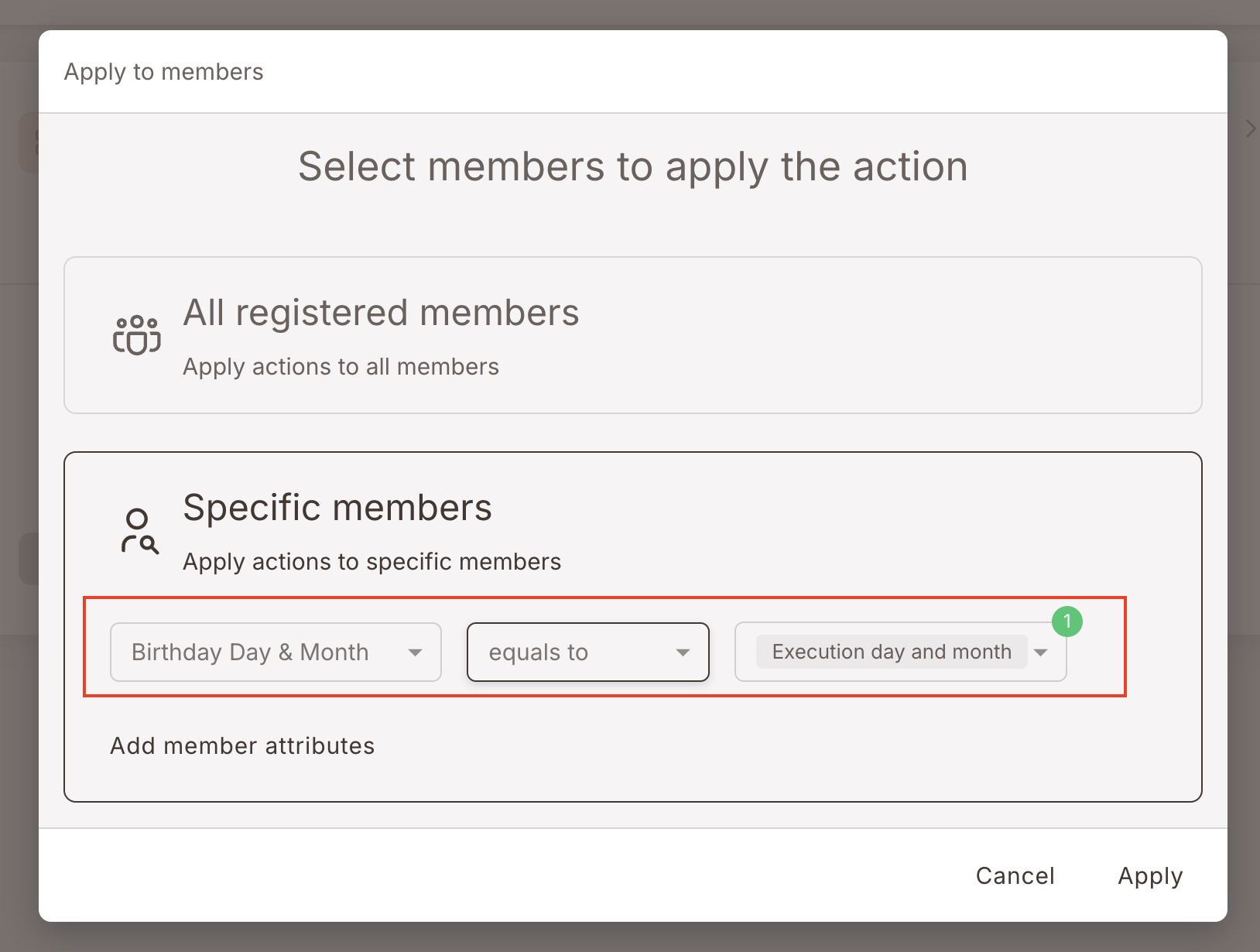
NOTE: Only members who meet the defined conditions will receive the actions configured in the campaign.
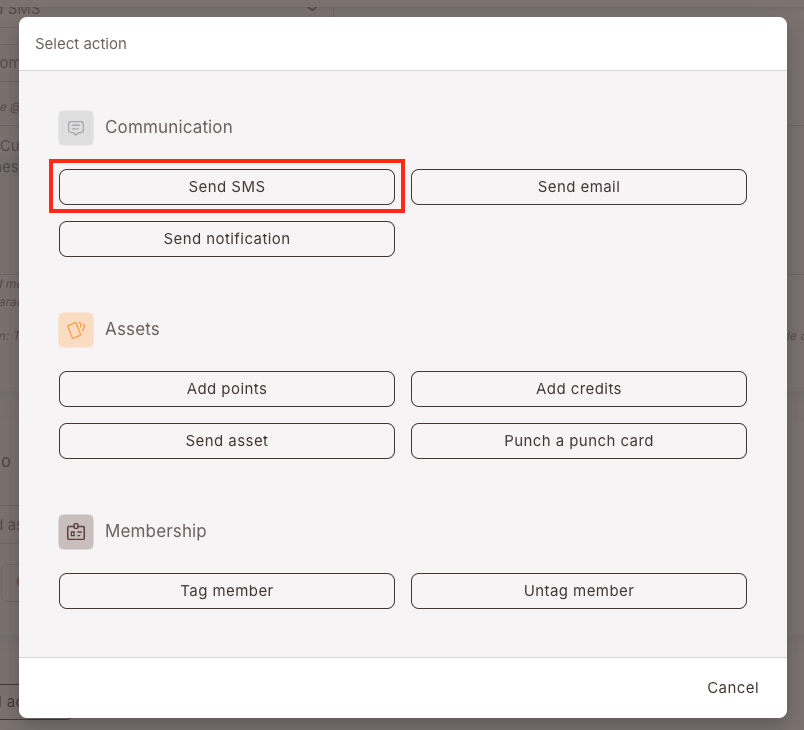
4. Configure the Actions
Campaigns allow you to combine different types of actions:
- Communication
- Assets
- Membership
In this example, we will configure a birthday greeting SMS.
Configure:
- Action: Send SMS
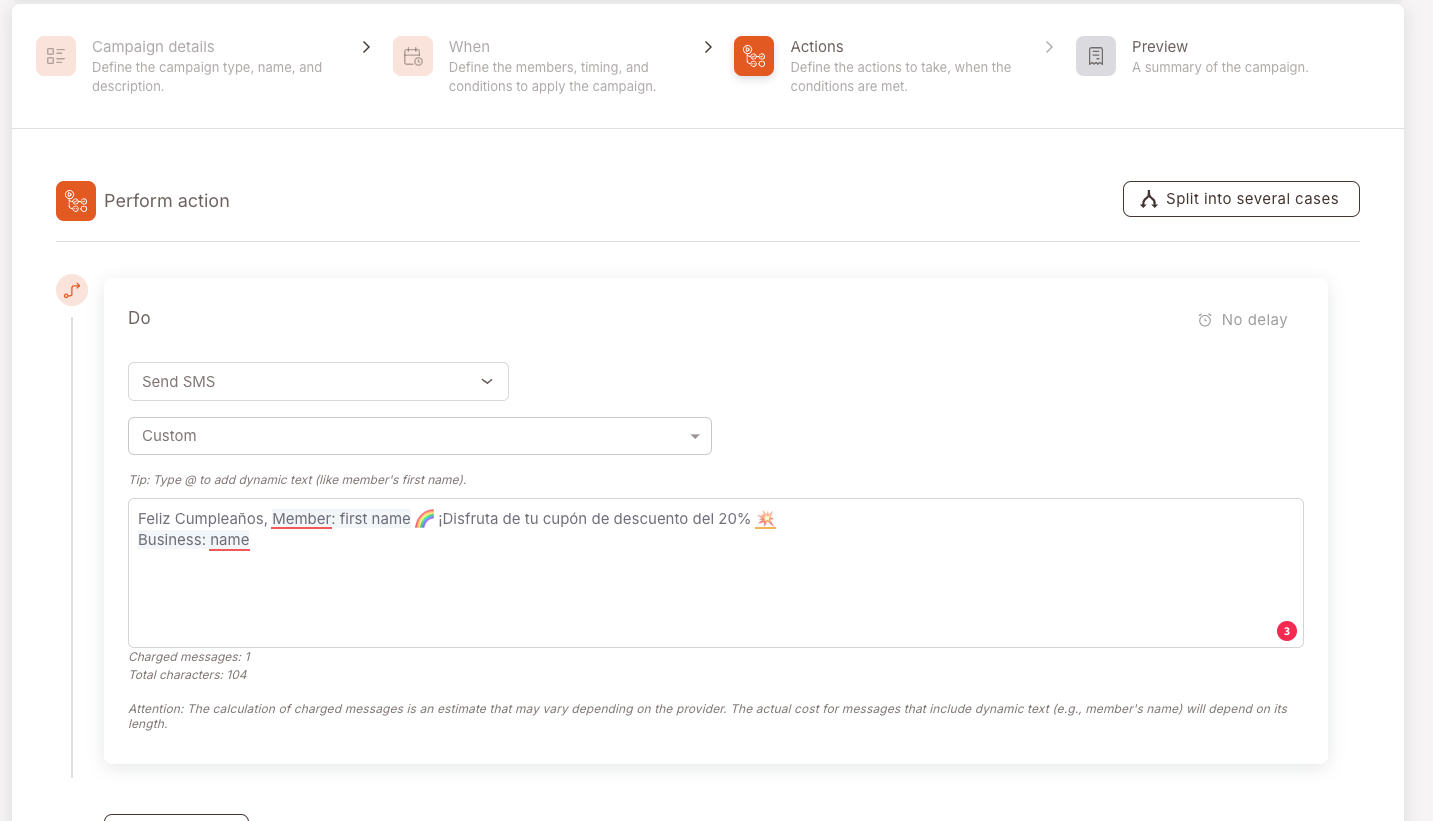
5. Configure the Message
Select a previously created template or write a custom message.
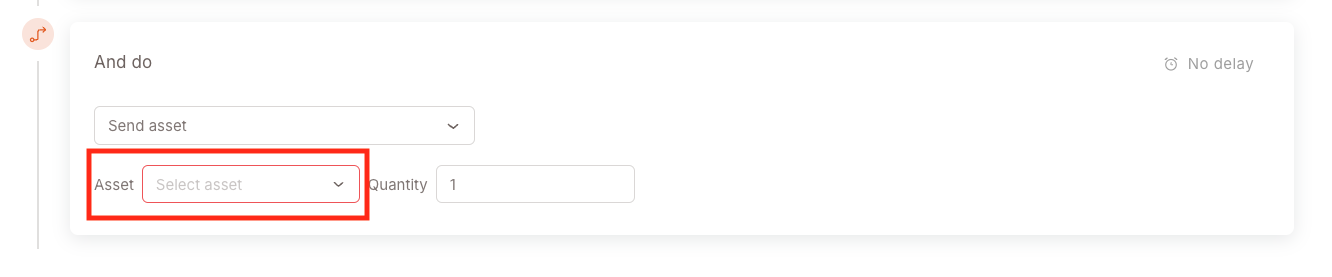
6. Add the Gift
Click Add Action to include the gift in the campaign.
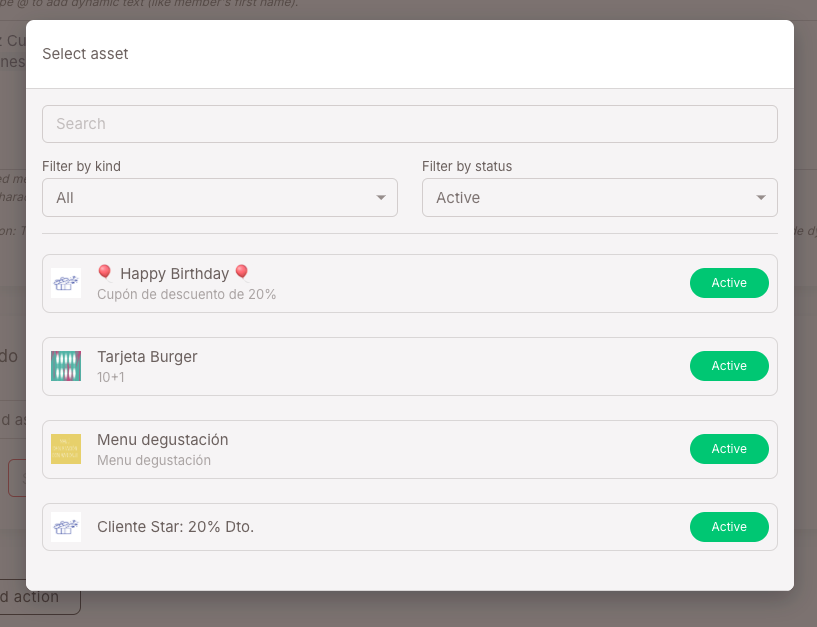
Then, select the previously configured gift.
7. Save the Campaign
Once all actions have been configured, save the campaign.
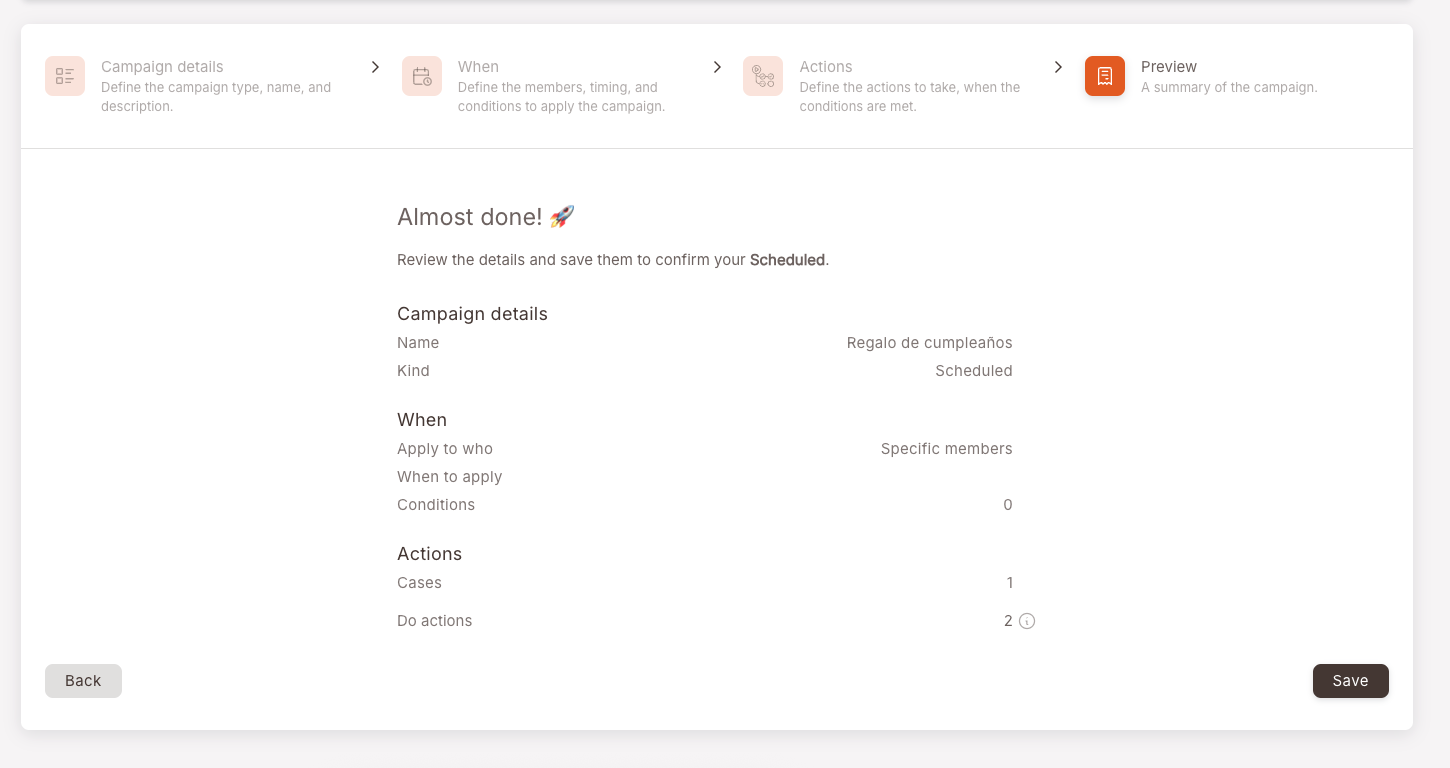
Final Result
When the customer's birthday arrives:
- They will automatically receive the configured SMS.
- They will receive the gift associated with the campaign.
- The actions will be executed without any manual intervention.
The scheduled campaign is now active and ready to use.