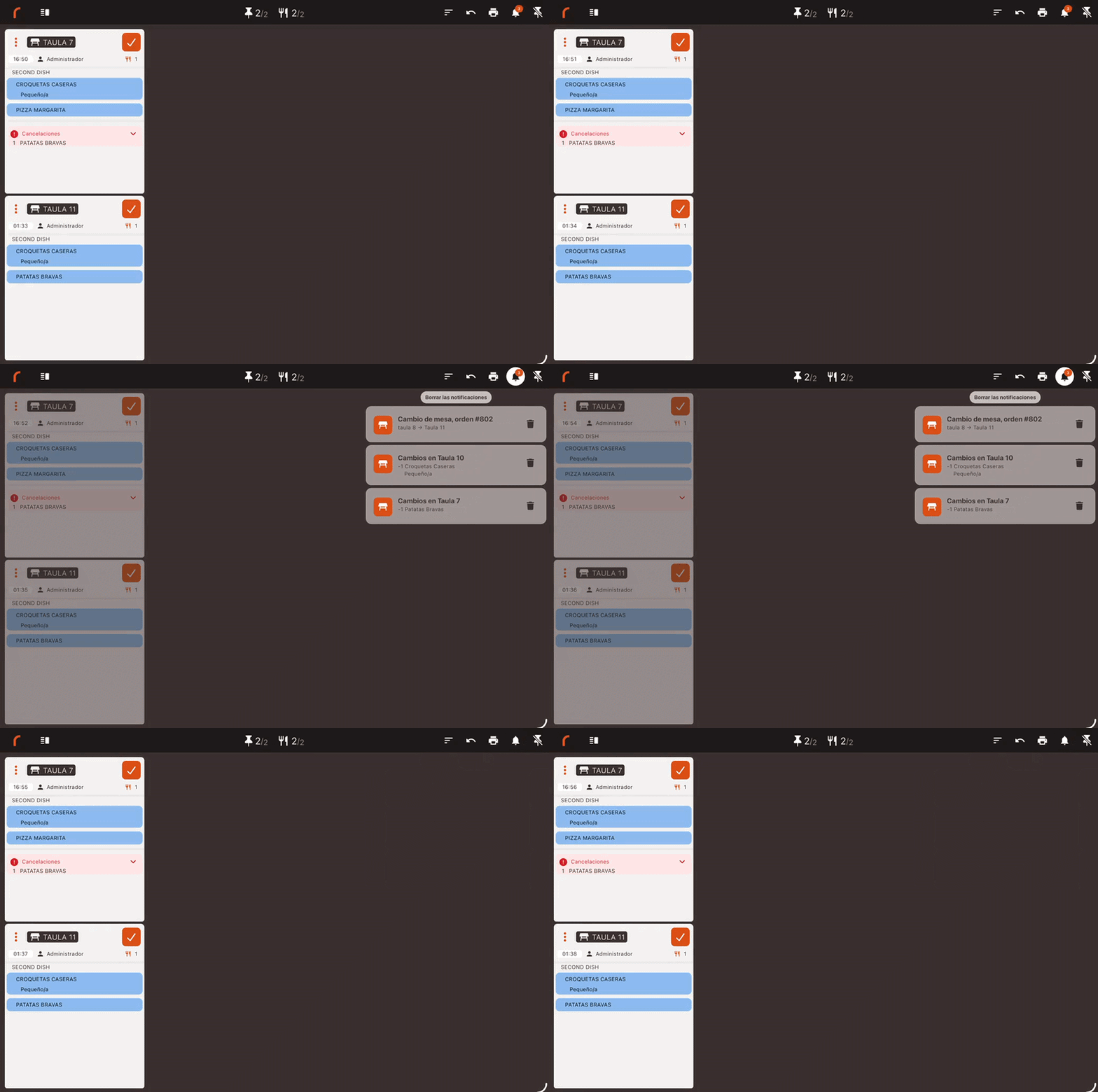
Once your iPad or MicroTouch Android Monitor is set up and options are customized in the back-office, follow these steps to use the Revo KDS 2 operational app in the kitchen environment.
1. LOGGING INTO THE APP
2. NAVIGATION HEADER
3. ORDER VIEW (TICKETS)
4. APP FEATURES
5. ACTIONS ON ORDERS
6. NOTIFICATION CENTER
1. LOGGING INTO THE APP
ACCESS CREDENTIALS
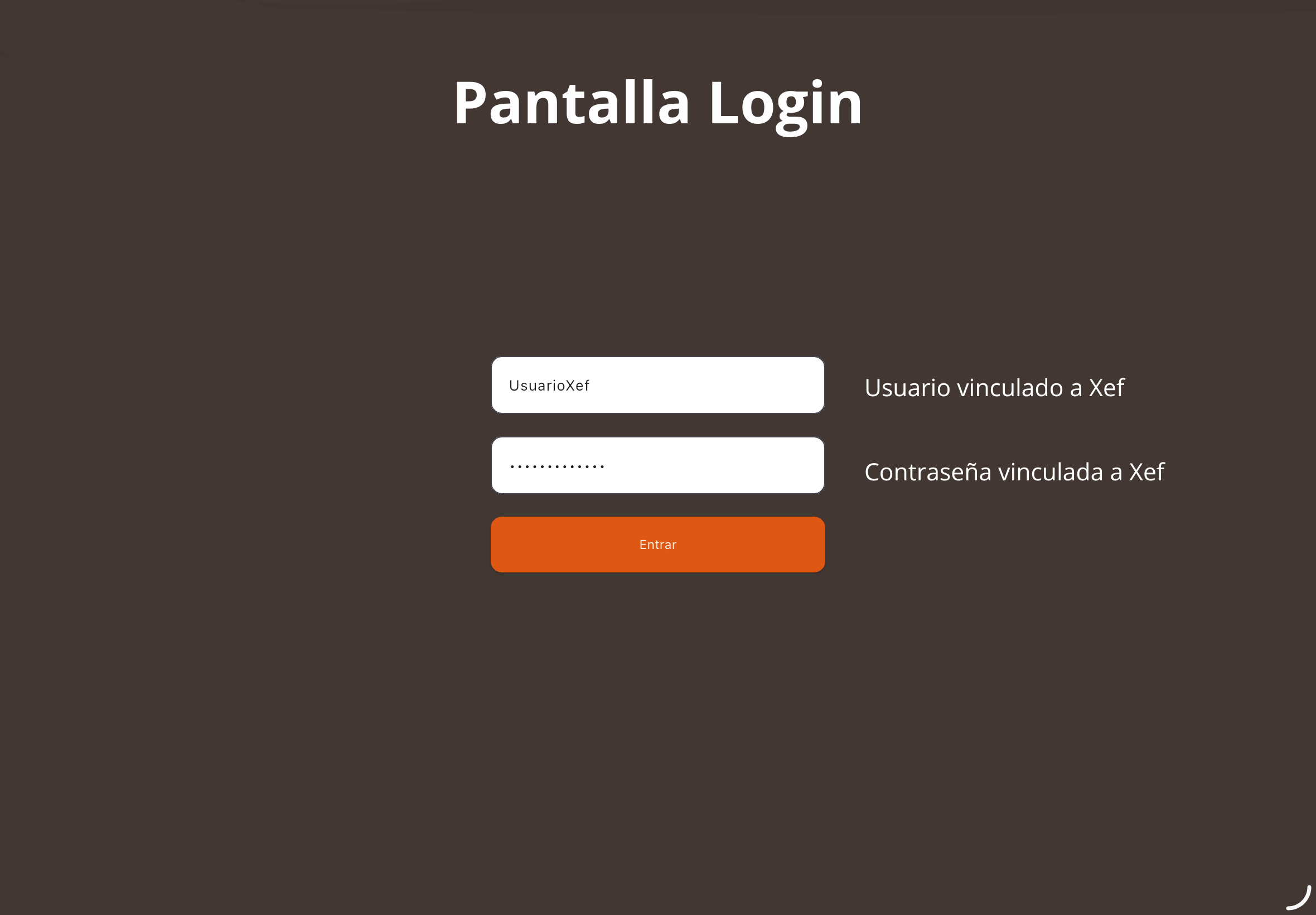
Open the Revo KDS 2 app on your device and enter your username and password linked to Revo XEF.
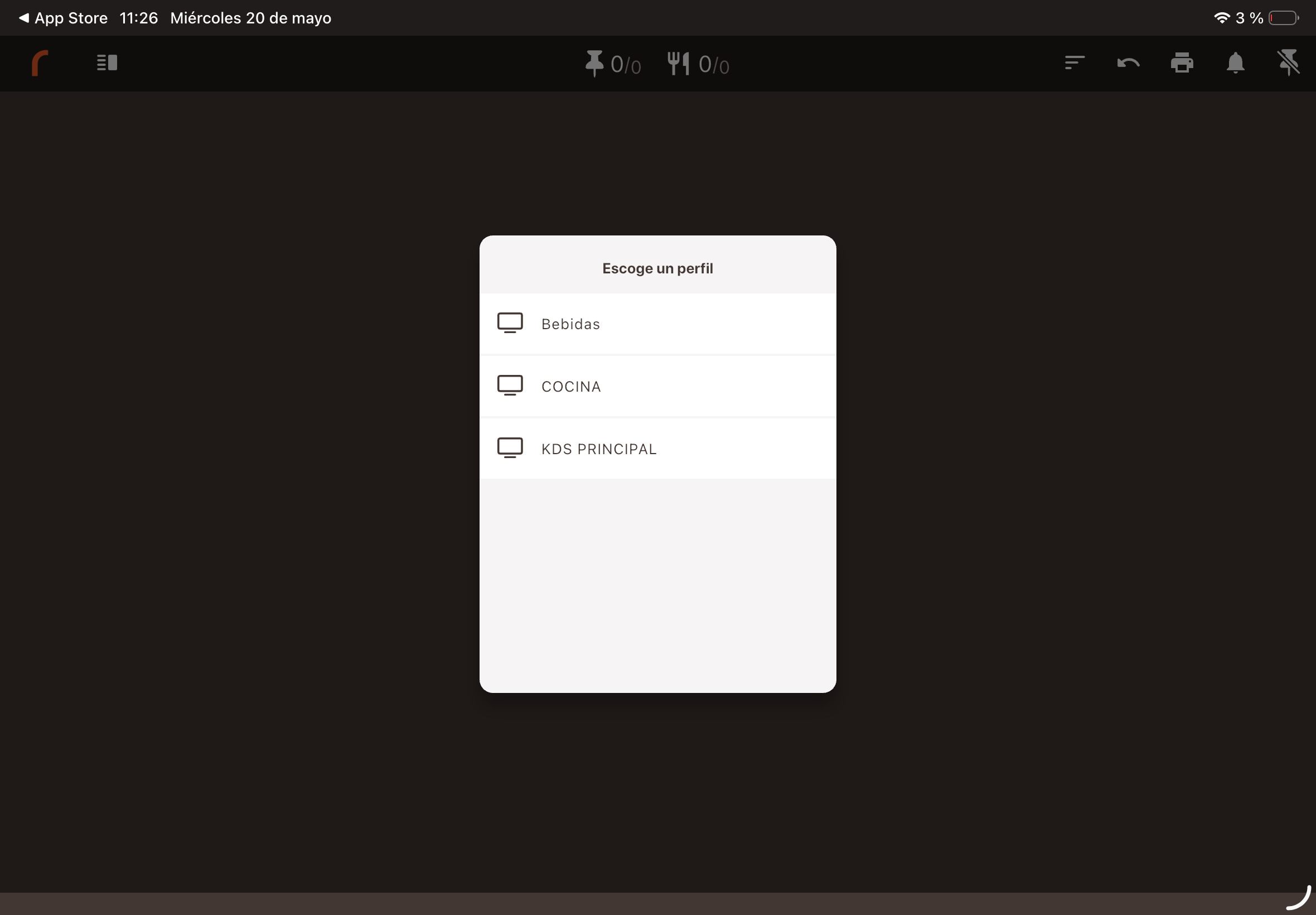
PROFILE SELECTOR New
If you have more than one profile configured in the back-office, KDS 2 will automatically ask which one you want to use as soon as you start the session (Fríos, Calientes, Pase, etc.). Select the profile and tap Guardar. If your venue only has one profile created, the system will automatically assign it and log in directly with the available profile.
2. NAVIGATION HEADER
MAIN MENU
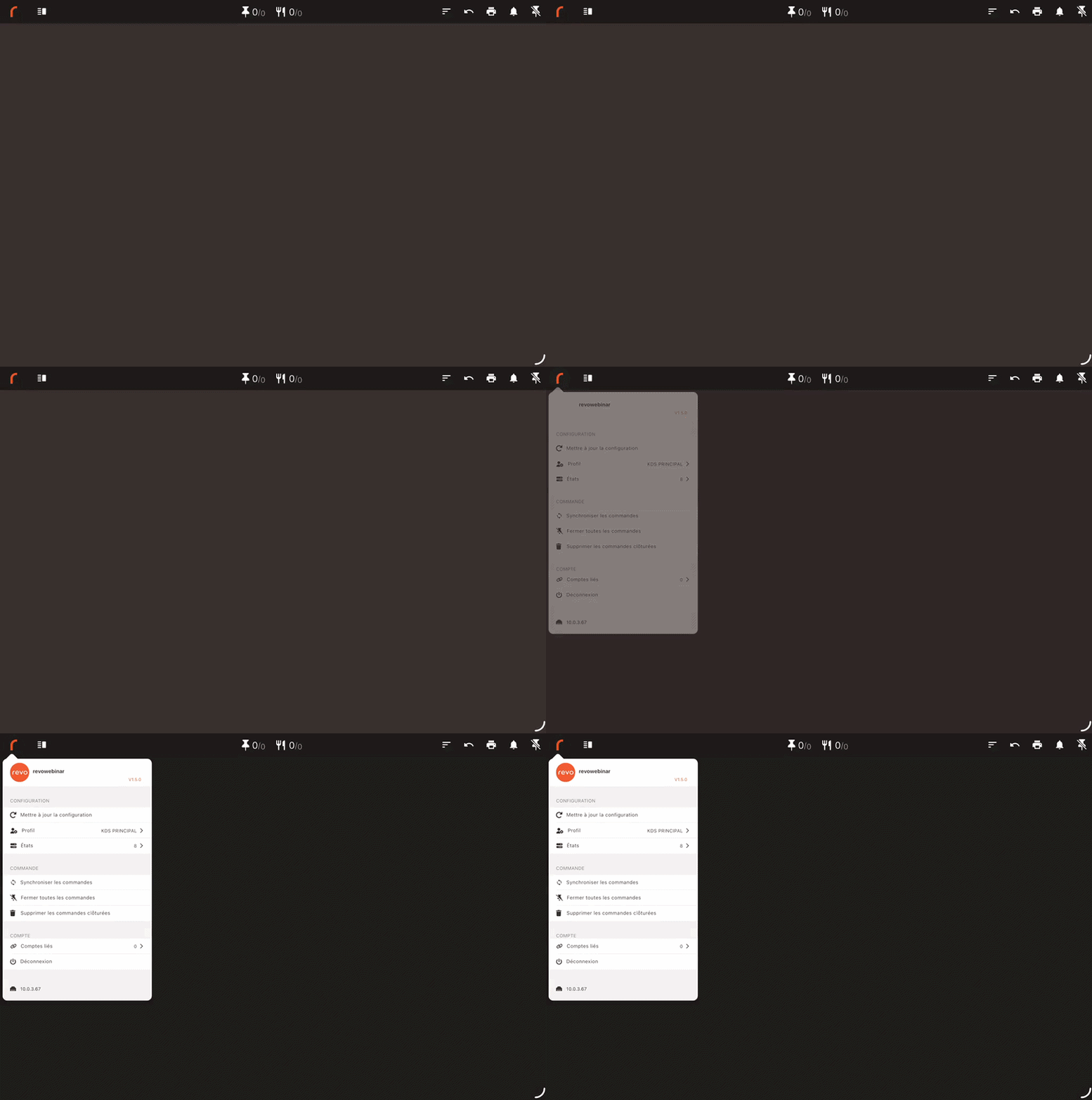
Tap the r icon in the upper left corner to display the global settings panel. From here you can force synchronizations, quickly change your work profile, view active statuses, or log out.
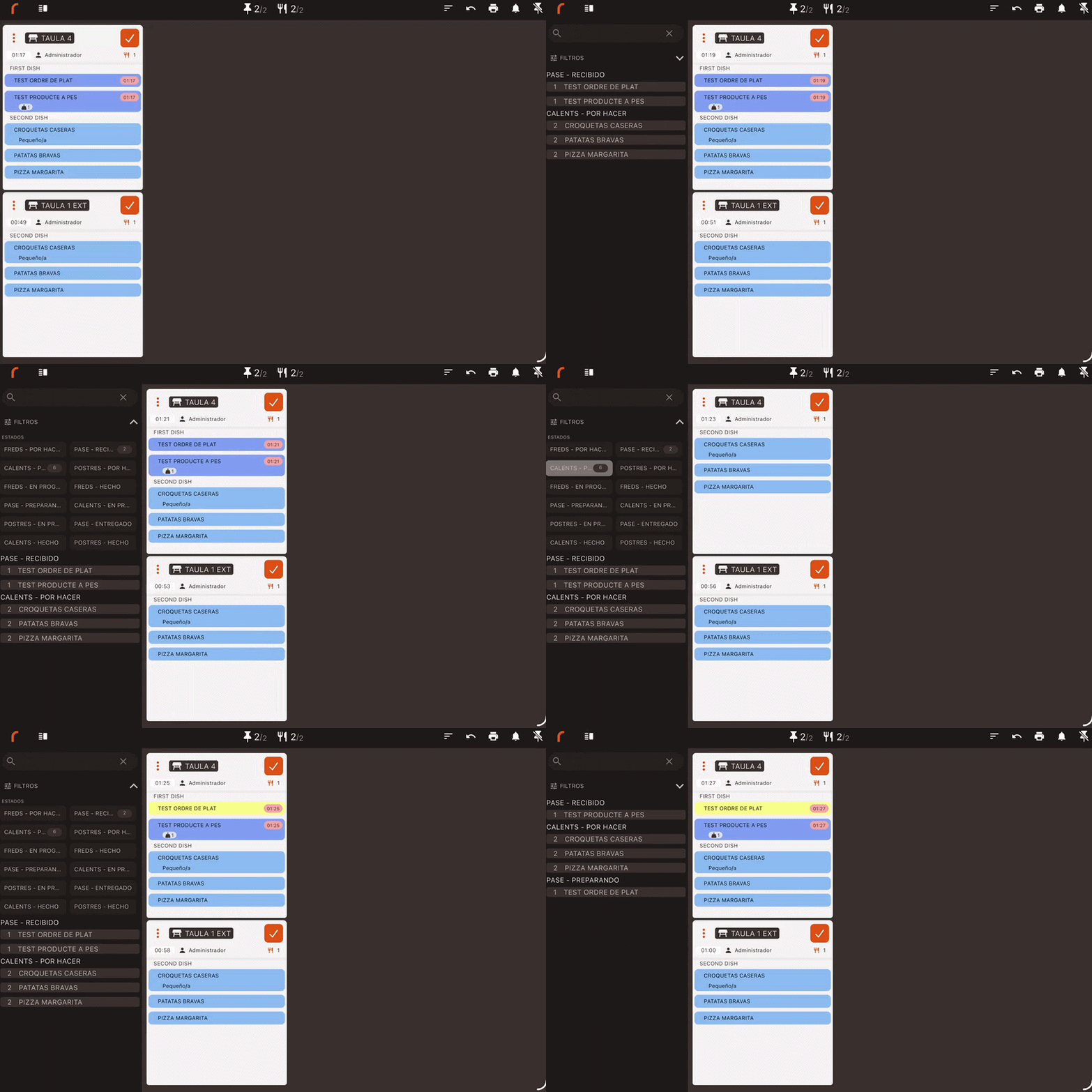
DEVICE BAR AND COLLAPSIBLE FILTERS New
The native device bar (Wi-Fi, battery, time) always remains visible. Just below, you will find the search bar and status filters. They now feature an interactive button to collapse or expand them, optimizing your reading space when the kitchen is flooded with tickets.
QUICK ACTION ICONS
In the upper right corner you have immediate tools available:
- Ordenar por: Used to determine the order in which we see the orders.
- Deshacer: To revert recent errors.
- Impresora: To print the pass ticket (requires ESC/POS driver printers).
- Campana de notificaciones: Used to receive notifications that we configure in the back-office.
- Órdenes cerradas: To retrieve closed orders from the last 24 hours.

3. ORDER VIEW (TICKETS)
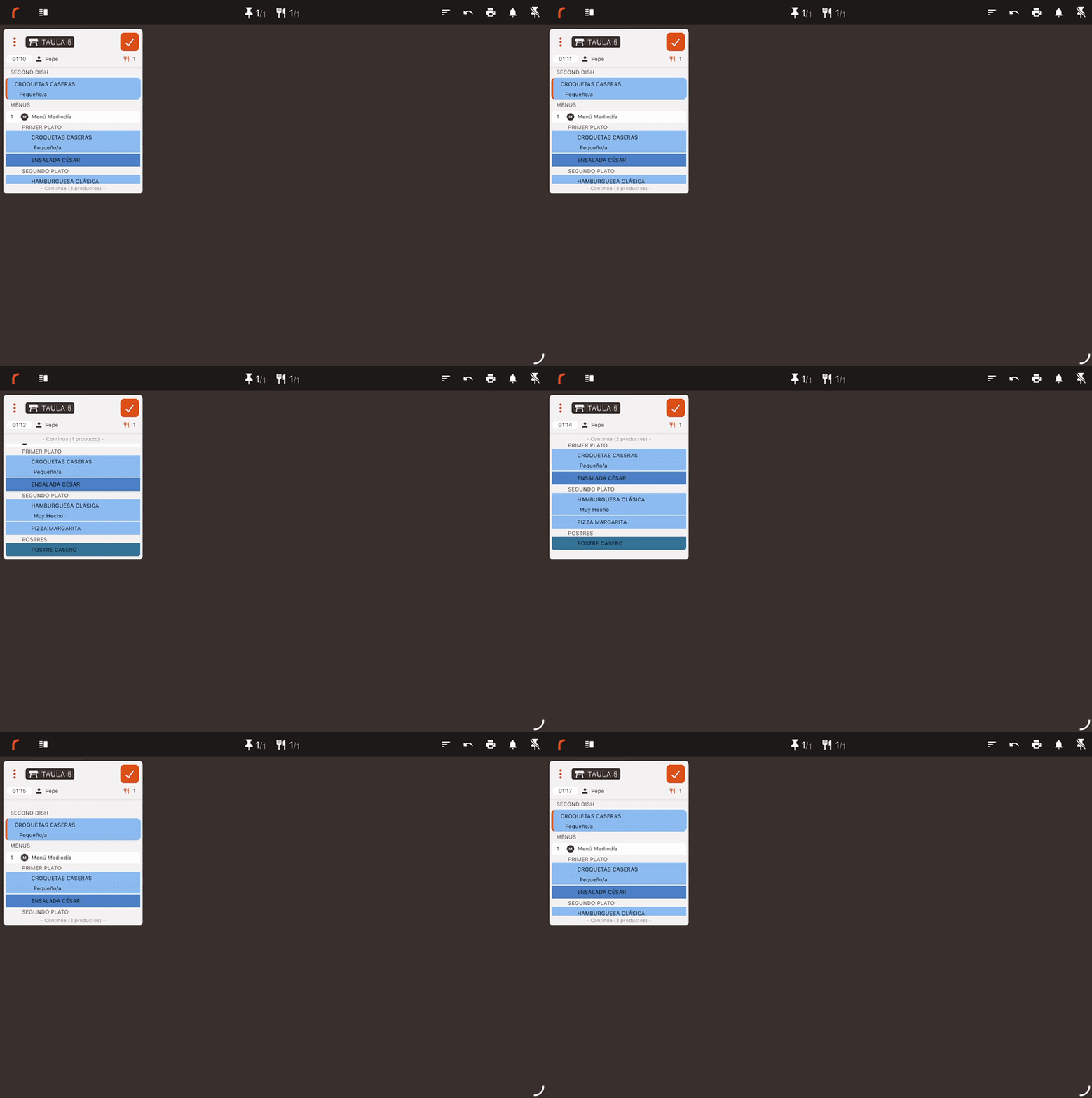
KITCHEN TICKET STRUCTURE
The central body of each active order breaks down all the vital information the cook needs at a single glance: the table/zone name, the issuing waiter, the number of guests, the order locator, and the preparation time counter, located at the top left of the ticket in KDS 2.
4. APP FEATURES
REVO KDS 2 acts as the digital brain of your kitchen. Below, we visually break down the main operational features offered by the application:
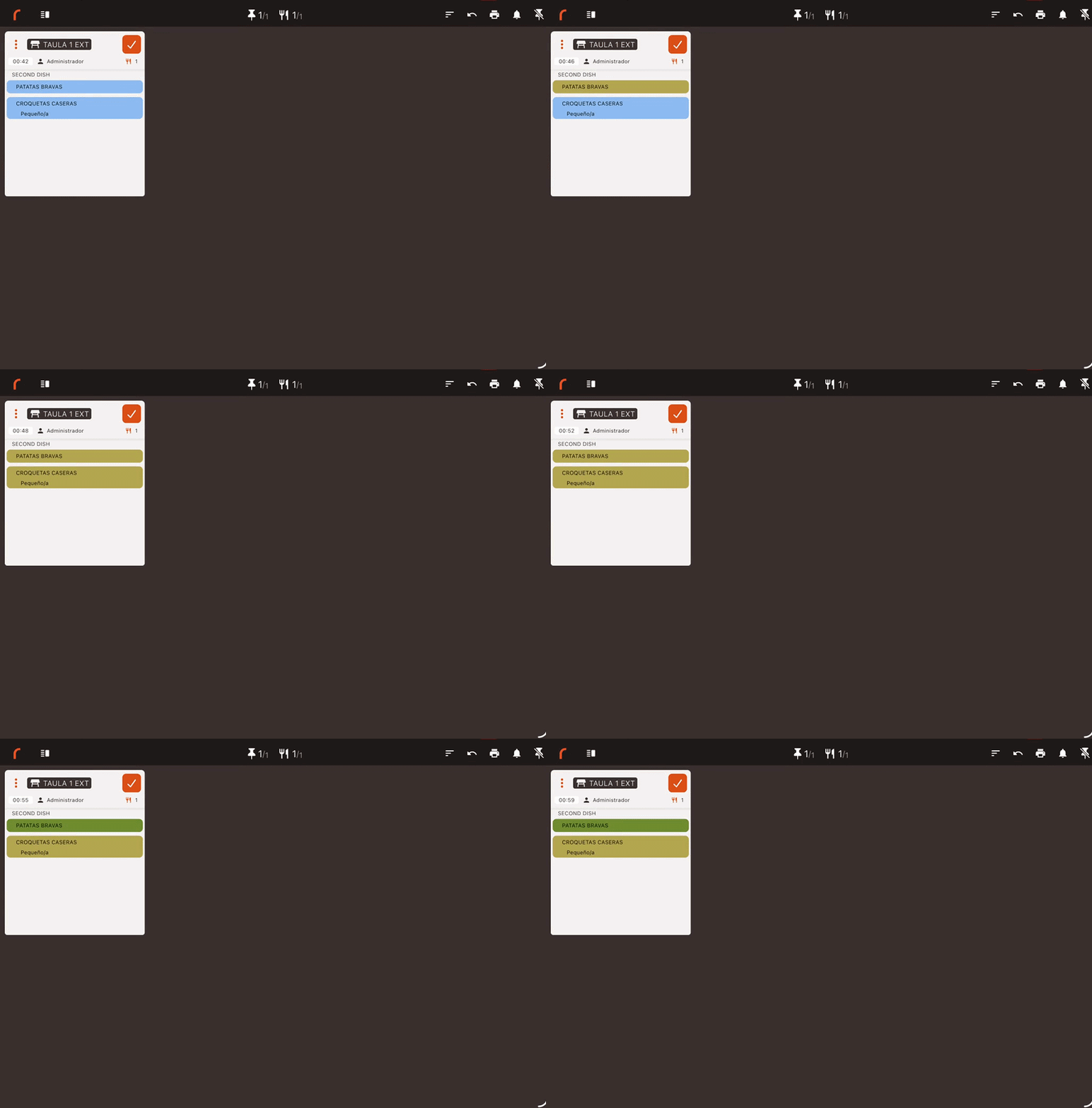
TOUCH STATUS MANAGEMENT AND ROOM MONITORING
Allows advancing the preparation status of dishes (for example, from Pendiente to Preparando and subsequently to Listo) with a simple tap. This action instantly notifies the dining room so that waiters know the progress of the order in real time.
KDS 2 · Kitchen
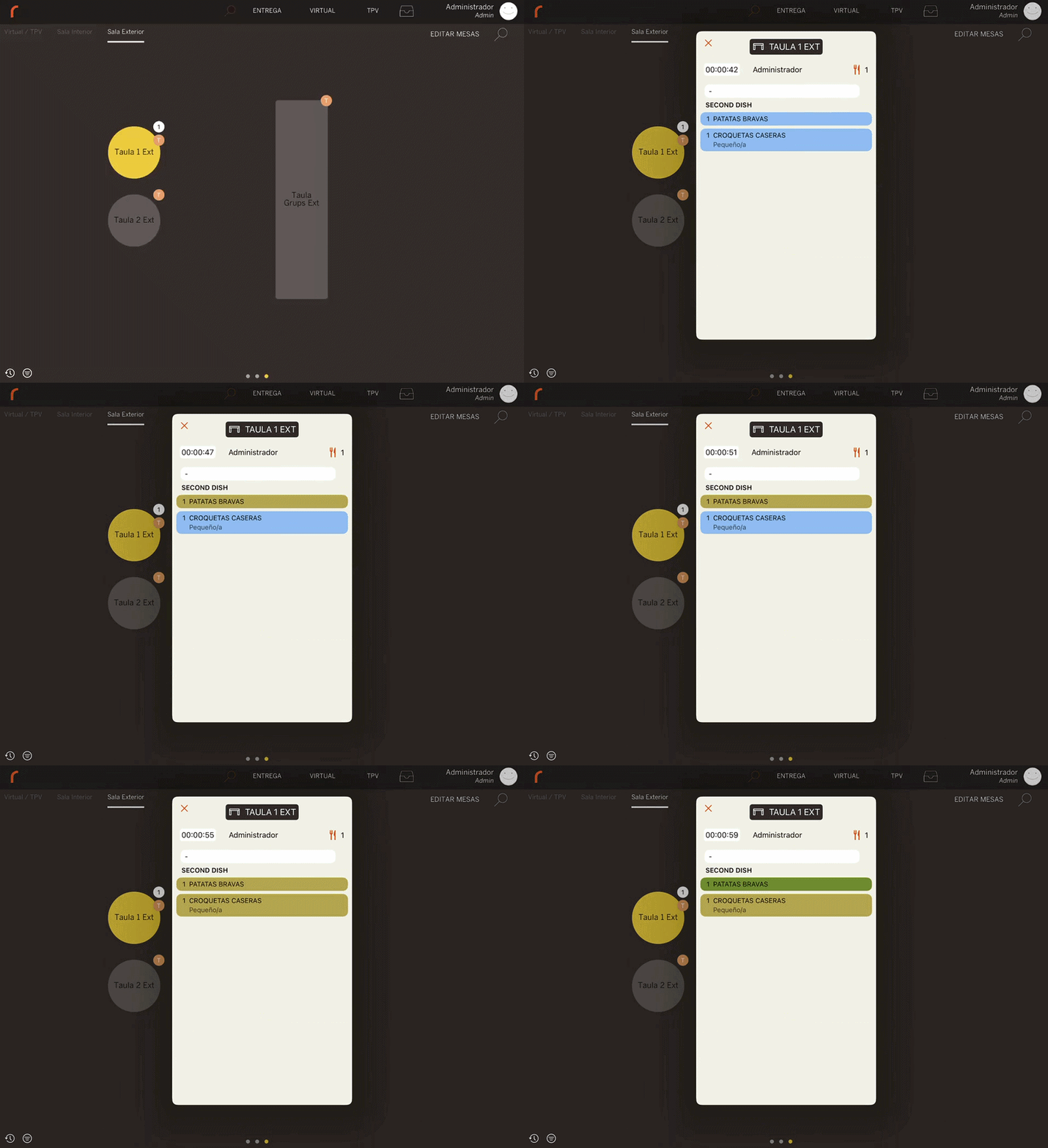
KDS 2 · View in Revo Xef
To avoid physical interruptions in the kitchen, waiters can audit the progress of their table directly from the dining room TPV. On the graphic floor plan, simply swipe down on an occupied table and select Ver el estado del KDS. A floating window will open displaying the visual status of each dish in real time.
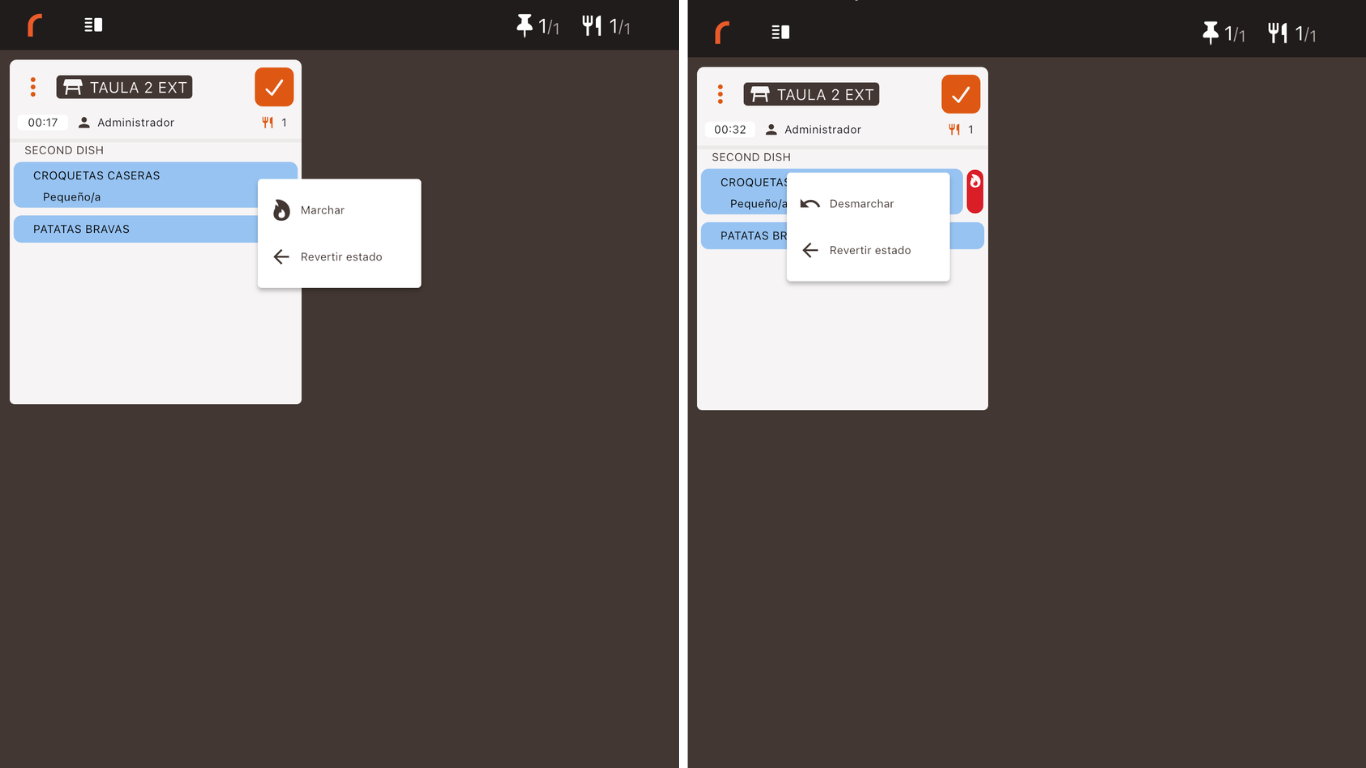
MARCHAR AND DESMARCHAR ITEMS New
Full bidirectional communication with the room. You can trigger the "Marchar" notice directly from the kitchen by holding down a product. In addition, if you make a mistake, you can now immediately undo the marchado without having to navigate backward in the app.
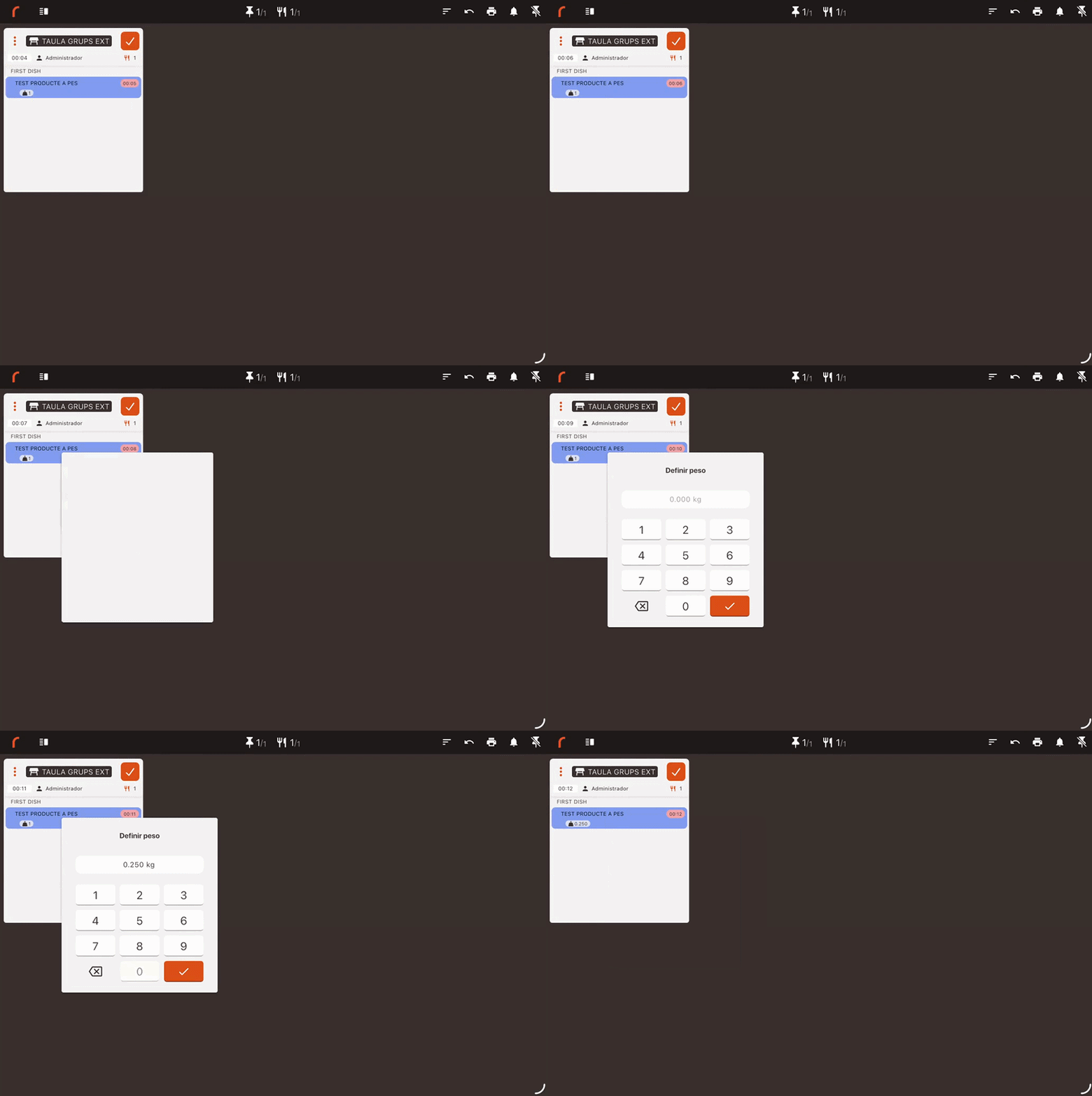
DEFINE ITEM WEIGHT New
Designed for items sold in bulk (carnes, mariscos, pescados al peso). Cooks can adjust the final actual quantity directly from the KDS. This modified weight automatically syncs with the room TPV to ensure exact billing.
5. ACTIONS ON ORDERS
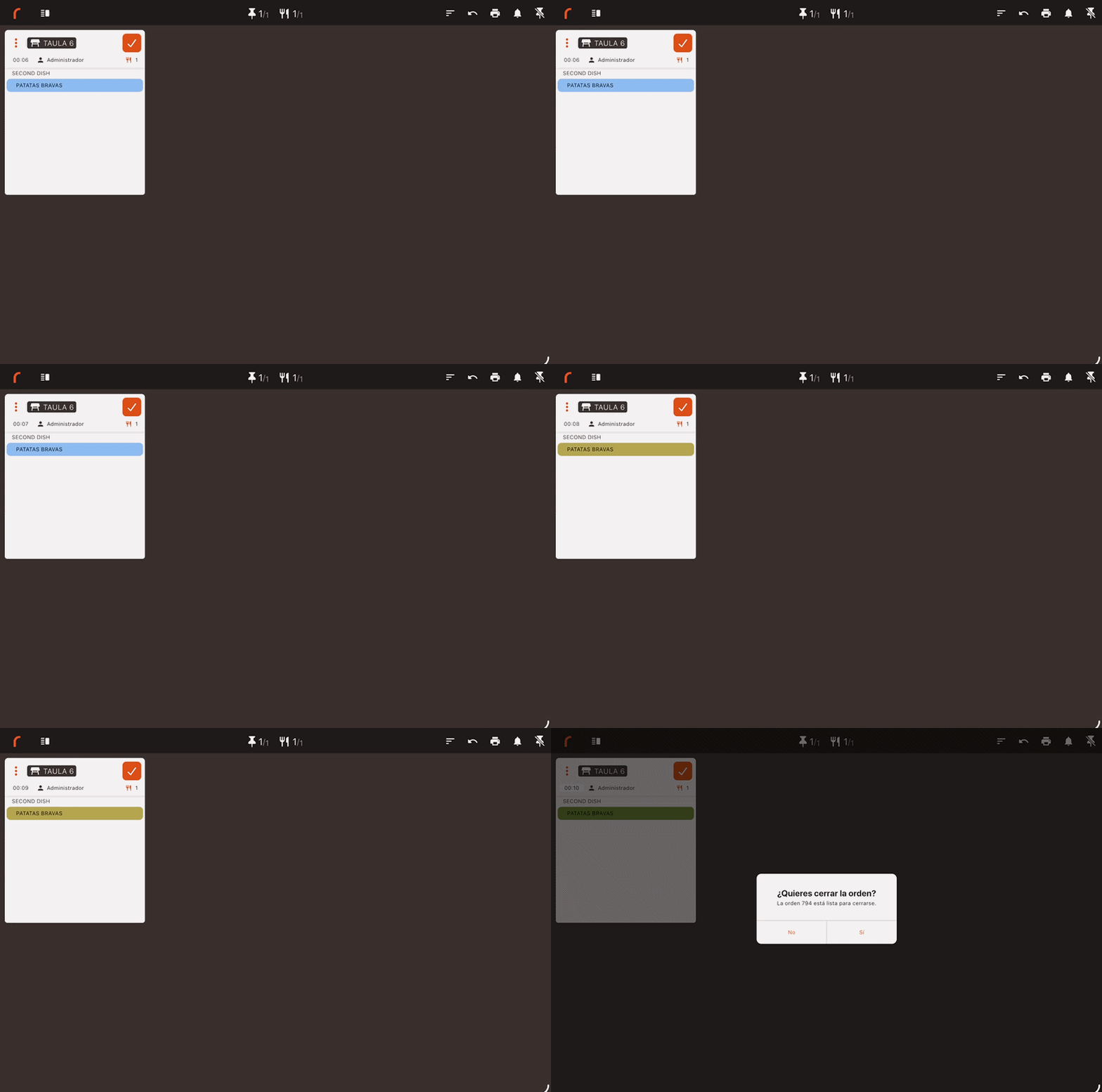
STATUS CHANGE (SIMPLE TAP)
With a simple quick tap on the product name, it will advance to the next preparation status. The ticket closing behavior (whether it disappears automatically or not when marking all items) can be customized from the back-office, allowing you to adapt the tool to your specific kitchen workflow. See more details in this article.
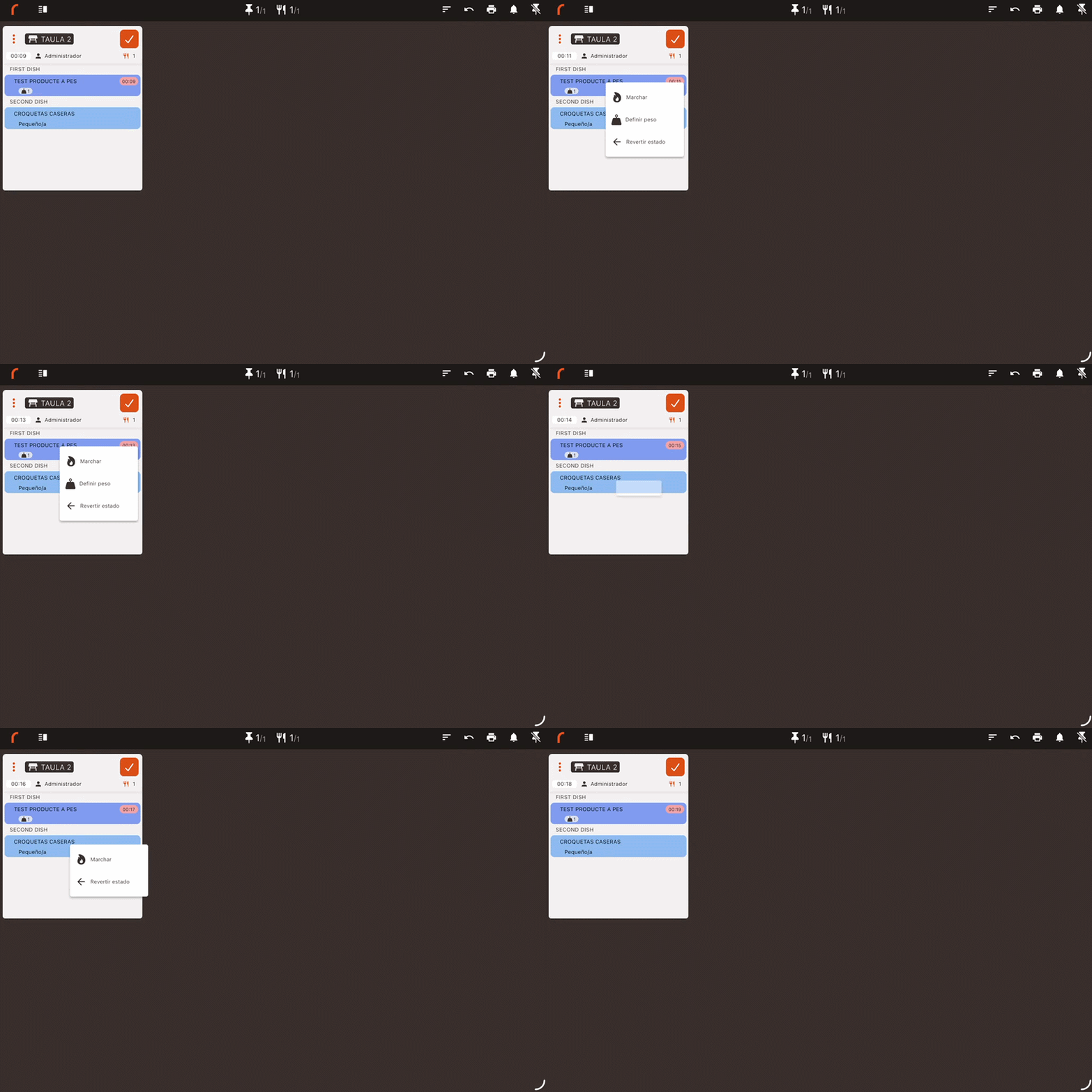
MARCHAR OR DEFINE WEIGHT (LONG PRESS)
If you hold your finger down on an item for a few moments, a floating contextual sub-menu will open. From there you can trigger the Marchar / Desmarchar command, or Definir el peso if the product requires it.
BULK CLOSE AND PRINT (TICKET ICONS)
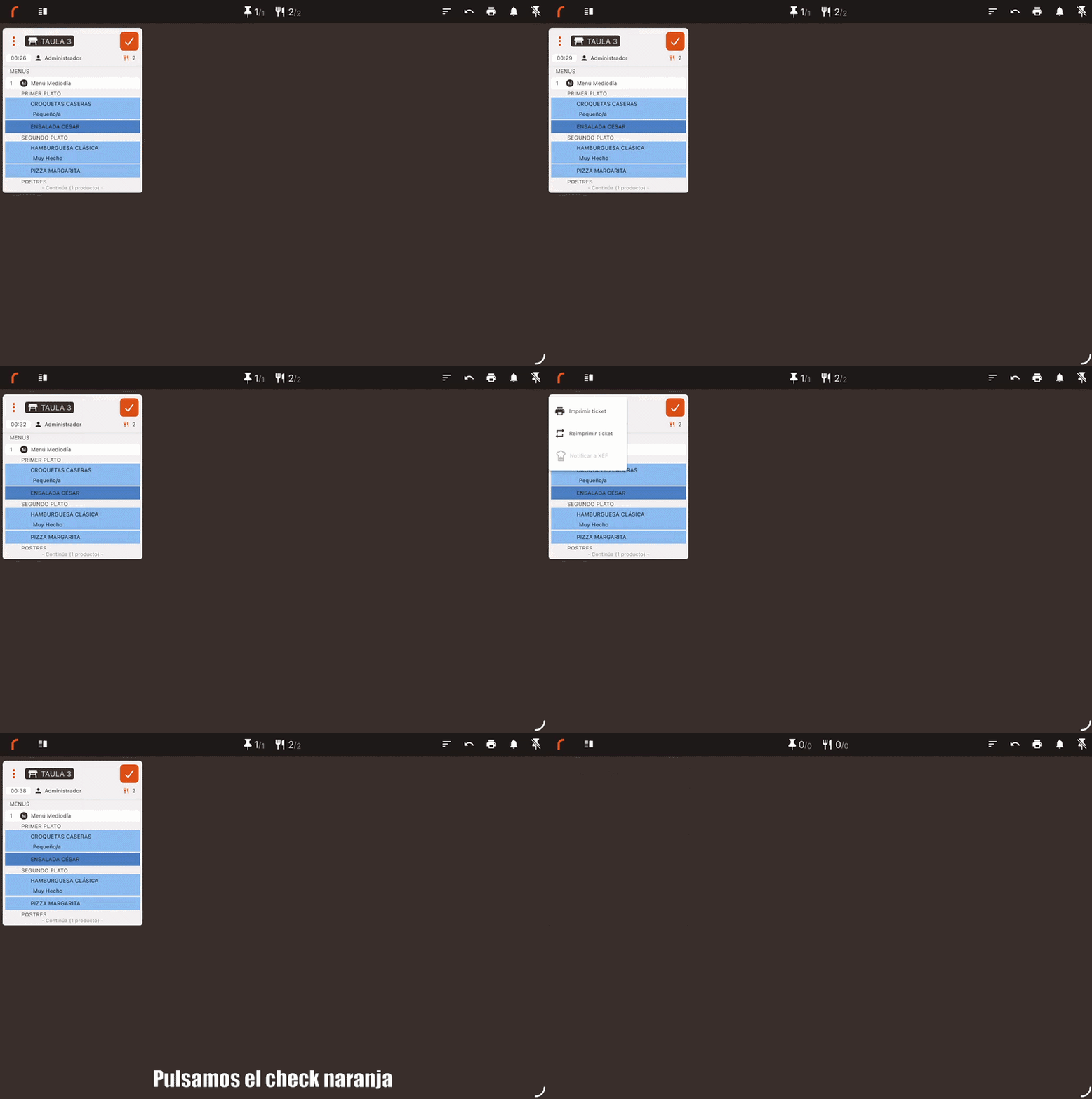
If you tap the orange check in the ticket header, you will close the entire order at once without having to go item by item. If you tap the 3 vertical dots , you can manually print the pass ticket or send special alerts (the "chef's hat") to the room.
6. NOTIFICATION CENTER
ALERT RECEPTION
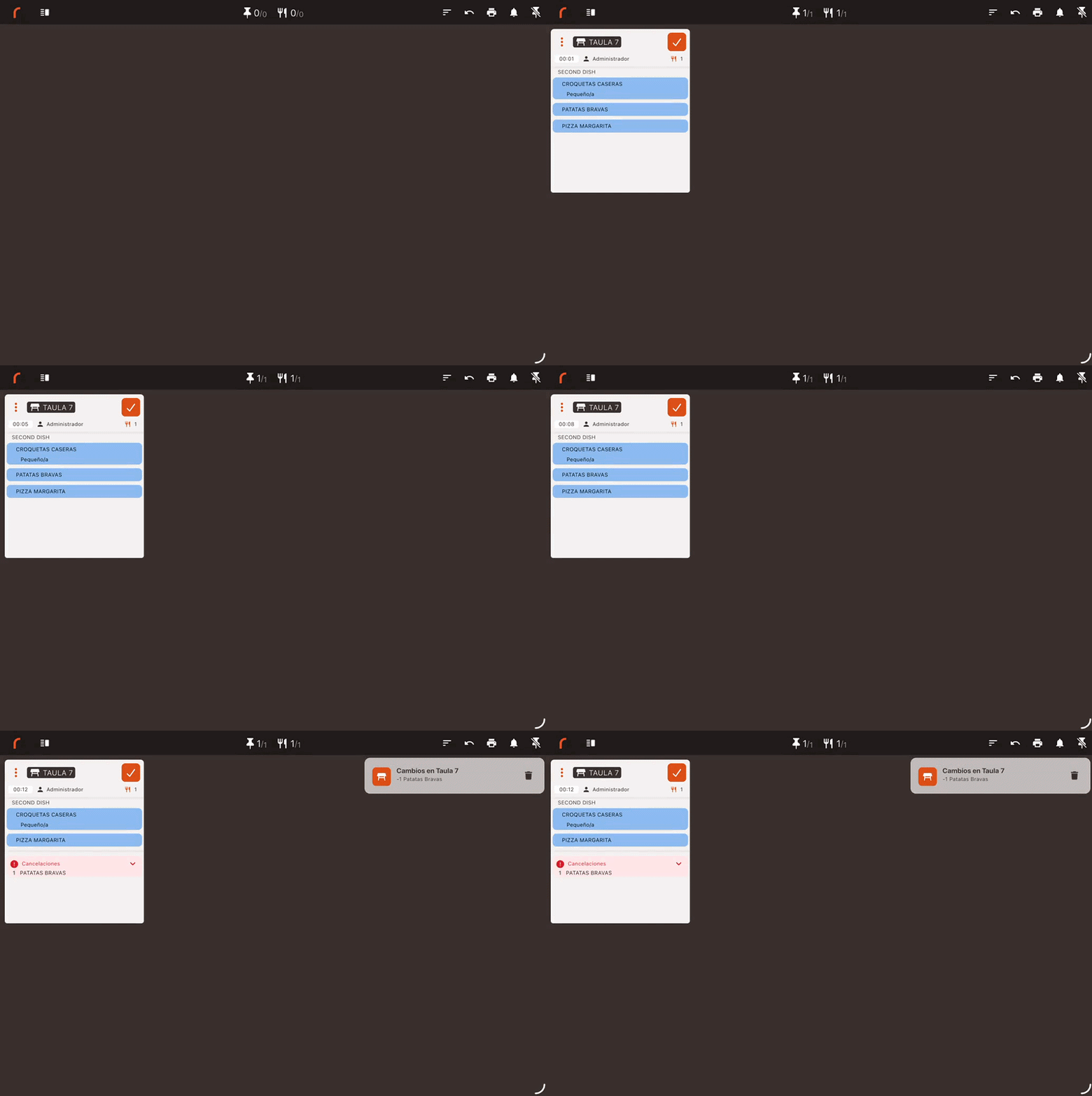
All unusual activity is gathered in the header bell icon: new orders, cancellations, table changes, or item transfers. The alert sound is now optimized to ring only on the KDS screens that are supposed to receive that order, avoiding unnecessary disturbances in other stations.
NOTIFICATION MANAGEMENT New
Keeping the alert screen clean is vital. Therefore, the option to tap Borrar todas las notificaciones has been added to empty the history instantly. Additionally, the system runs automatic maintenance and removes all previous day's alerts every time the app is opened.