1. WHAT IS REVO KDS 2 2. WHAT'S NEW IN KDS 2 3. BENEFITS AND REQUIREMENTS OF REVO KDS 2 4. HOW TO REQUEST/PURCHASE A MICROTOUCH ANDROID MONITOR
1. WHAT IS REVO KDS 2
We understand that kitchen efficiency is key to a restaurant's success. That is why we have worked to create a more powerful, agile, and customizable tool.
With Revo KDS 2 (Kitchen Display System), we stop working with a printer and it becomes a kitchen management system. By improving its operability and usability, KDS 2 stops acting merely as a printer to expand its capabilities, adapted to each dish and to the business needs.
The KDS takes over from the POS in the kitchen, managing the operational flow there with the same skill with which the latter does in the dining room.
And if we add to this, as is the case with Cegid Revo, that the KDS is part of an integral suite of technological solutions, the triumph is even greater.
The kitchen screen or Kitchen Display System (KDS), by being connected to the waitstaff's point-of-sale software, makes communication between the dining room and the kitchen smoother. This technology represents a great advance in operations: kitchen managers can check the status of all dishes quickly, and chefs can receive, read, and archive orders with just a few clicks, without needing to rummage through papers and minimizing the stress of teams that, at peak hours, are already at their limit.
In addition, it is the only paperless method to manage orders, which reduces the ecological footprint of any restaurant.
2. WHAT'S NEW IN REVO KDS 2
-
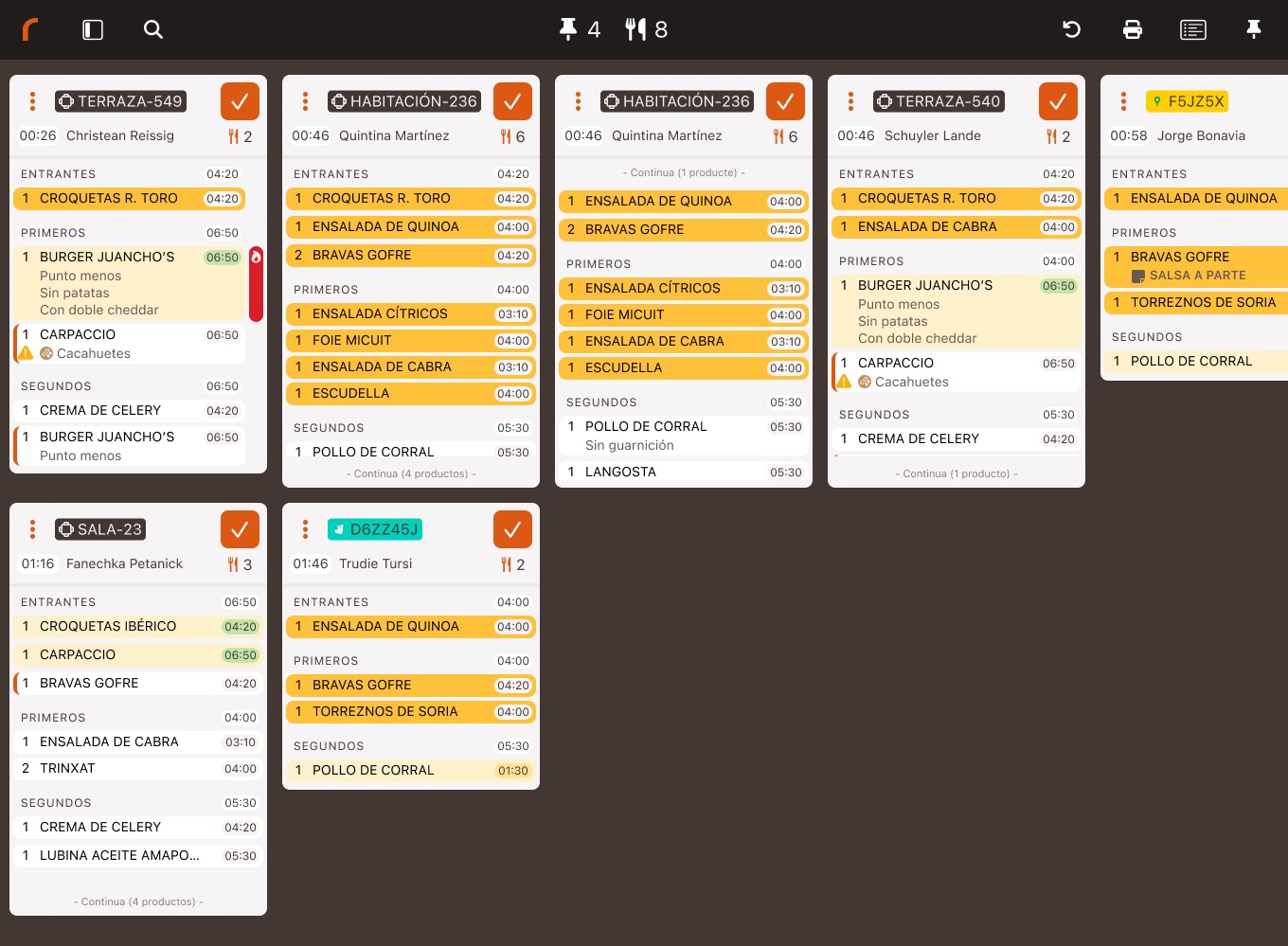
From Printer to Kitchen Management System: With Revo KDS 2, we have transformed the classic KDS to a higher level, turning it into an integral management system for your kitchen. Revo KDS 2 is no longer just a printer that handles "tickets" but has become a kitchen management system that efficiently manages all orders, optimizing each stage of the dish preparation process.
-
Larger and More Agile Screen (iOS + Android - MicroTouch): Now with KDS 2, we can use the app on the new MicroTouch screens; featuring an optimized size, they are fast, responsive, and easy to use. They adapt perfectly to your workflow, ensuring a smoother experience. It is now possible to combine iPads + Android Monitors.
Two Android screen models available:
- MicroTouch M1-215IC (22"): Click here to see more information about the monitor.
- MicroTouch M1-270IC (27"): Click here to see more information about the monitor.
Note: If we want to use the Revo KDS 2 app on an Android monitor, we can only do so on these two models that we have approved at Cegid Revo.
-
Customized Order Visualization: Every kitchen is unique, which is why you can now customize the visualization of orders on each of the KDS devices. Adjust the layout according to your preferences to maximize efficiency and reduce waiting times.
-
Unlimited and Customizable Statuses: Create and customize as many statuses as you need, including colors, to better manage each stage of your dishes. Choose the status that best fits your workflow and organize the production of your dishes more efficiently.
-
Unlimited Status Flows: No two kitchens are alike, which is why we offer you the possibility to create fully customizable status flows. Organize the dish preparation process your way, sorting the statuses as it suits you best.
-
Full Activity Log in the Back-Office: All actions performed within the application are now detailed and recorded in the back-office. This provides you with full traceability to monitor kitchen activity and optimize operations more efficiently.
-
Dish Summary with Advanced Filters: The new dish summary functionality will allow you to filter by statuses and use advanced filters to get clear and detailed information about the preparation of your dishes. This will help you manage your kitchen with greater precision.
-
Firing Dishes Directly from the App: Now, you can fire (marchar) dishes directly from the Revo KDS 2 application. It simplifies the process and improves communication between the kitchen staff and the service.
-
Dish Status Visualization in the Cegid Revo Xef App: Now, using the Cegid Revo XEF app, waitstaff can check the status of dishes in the kitchen (KDS 2) at any time.
3. BENEFITS AND REQUIREMENTS OF REVO KDS 2
Benefits:
- Consistent kitchen: Total control of processes, minimizing errors and extra costs.
- Connected kitchen: Fluid communication between the kitchen and dining room, improving customer service.
- Quiet kitchen: A relaxed and focused environment for the team and customers.
- Clean and sustainable kitchen: Elimination of polluting papers, working in a more ecological way.
- Inclusive kitchen: Easy adaptation for all chefs, even the least digitalized ones.
- Efficient order management: Instant sending and clear visualization of the status of each order.
- Complete view: Access an advanced summary of the status of all dishes.
- Optimization: Improves preparation times and reduces errors.
Requirements to use Revo KDS 2 on the iPad and on the MicroTouch Android monitor:
- Revo XEF: Revo KDS 2 works in conjunction with Revo XEF, but not independently.
- Revo XEF Advance Version: In order to receive orders on KDS 2 devices, it is necessary to have the Revo XEF Advance version installed.
- Dedicated iPad and MicroTouch Android monitor: Install Revo KDS 2 on an iPad/MicroTouch Monitor exclusive for its use.
- Power connection: Make sure it has access to a power outlet to prevent it from discharging during service.
- Always-on screen: Configure the iPad/MicroTouch Monitor to never turn off, as this could generate connection errors when sending orders from Revo XEF. In Settings of the iPad or MicroTouch Monitor, go to Display & Brightness and then to Auto-Lock. Select Never to prevent the iPad/MicroTouch Monitor from turning off while using the application.
- Disable notifications: We recommend disabling all Notifications in the device's Settings.
- For the iPad, get the Revo KDS 2 app from the App Store. For the MicroTouch Android monitor, you will find the KDS 2 app already installed on the device, and if it is not, you can download it by entering the Google Play Store.
- Static IP: The iPad device and/or MicroTouch Android monitor must have a static IP.
Assign a static IP:
- Access Settings on your iPad/MicroTouch Monitor.
- Tap on Wi-Fi.
- Tap the information icon of the connected Wi-Fi network.
- Select Configure IP.
- Choose Manual (it must remain selected with ).
- Manually enter the IP address, subnet mask (usually: 255.255.255.0), router and save the changes.
- Access Configure DNS.
- Choose Manual (it must remain selected with ).
- Manually enter a DNS address (8.8.8.8) and save the changes.
- Return to the previous menu by pressing Wi-Fi.
Recommended: The static IP should be outside the range of dynamic IPs assigned by the router or device managing the network.
Make sure all devices, including those that will use KDS, are connected to the same Wi-Fi network.
IMPORTANT:
- We must have only one version of Cegid Revo KDS installed on each device. We must avoid the simultaneous installation of Cegid Revo KDS 2 and Cegid Revo KDS on the same device/account to prevent potential inconveniences.
4. HOW TO REQUEST/PURCHASE A MICROTOUCH ANDROID MONITOR
You can request/purchase an Android monitor from MicroTouch by accessing the portal.
Once inside the portal:
1. We enter the Self-Service section.
2. We indicate Contract KDS 2 Screens.
3. We select the MicroTouch monitor model we want to buy and indicate the quantity.
4. We confirm the purchase.