DESCRIPTION
The import members function allows you to mass-add clients to InTouch via an external CSV file. It's ideal for migrating clients from another system or creating members quickly without having to enter them one by one.
1. PREPARE THE IMPORT FILE
Before importing, you must prepare a CSV file with the member data.
Required fields:
- phoneNumber: Contact number
- firstName: Client name
- email: Member email
Optional fields:
- lastName: Surname or surnames
- birthday: Birthdate (format YYYY-MM-DD)
- allowSMS: Allow SMS sending (TRUE/FALSE)
- allowEmail: Allow email sending (TRUE/FALSE)
- tags: Tags separated by commas
- pointsBalance: Initial points balance
- creditBalance: Initial credit balance
- termsOfUse: Acceptance of terms of use (TRUE/FALSE)
- gdpr: GDPR acceptance (TRUE/FALSE)
- totalSpent: Historical total spent
- visit: Initial number of visits
Formats to consider
- Booleans: Use TRUE or FALSE (in uppercase)
- Decimals: Use comma as decimal separator (e.g. 2547,5)
- Dates: Format YYYY-MM-DD (e.g. 1999-06-04)
- Phone number: Must include international prefix (e.g. 34600112233)
- Tags: Separate multiple tags with commas (e.g. VIP,Premium)
Example file
| phoneNumber | firstName | lastName | birthday | allowSMS | tags | creditBalance | termsOfUse | gdpr | allowEmail | totalSpent | visit | |
|---|---|---|---|---|---|---|---|---|---|---|---|---|
| 34612345001 | Juan | García | cliente1@email.com | 1990-05-15 | TRUE | VIP,Premium | 50 | TRUE | TRUE | TRUE | 100 | 5 |
| 34612345002 | María | López | cliente2@email.com | 1985-08-22 | FALSE | Standard | 25,5 | TRUE | TRUE | FALSE | 50 | 2 |
| 34612345003 | Pedro | Sánchez | cliente3@email.com | 1992-01-10 | TRUE | New | 0 | TRUE | TRUE | TRUE | 0 | 0 |
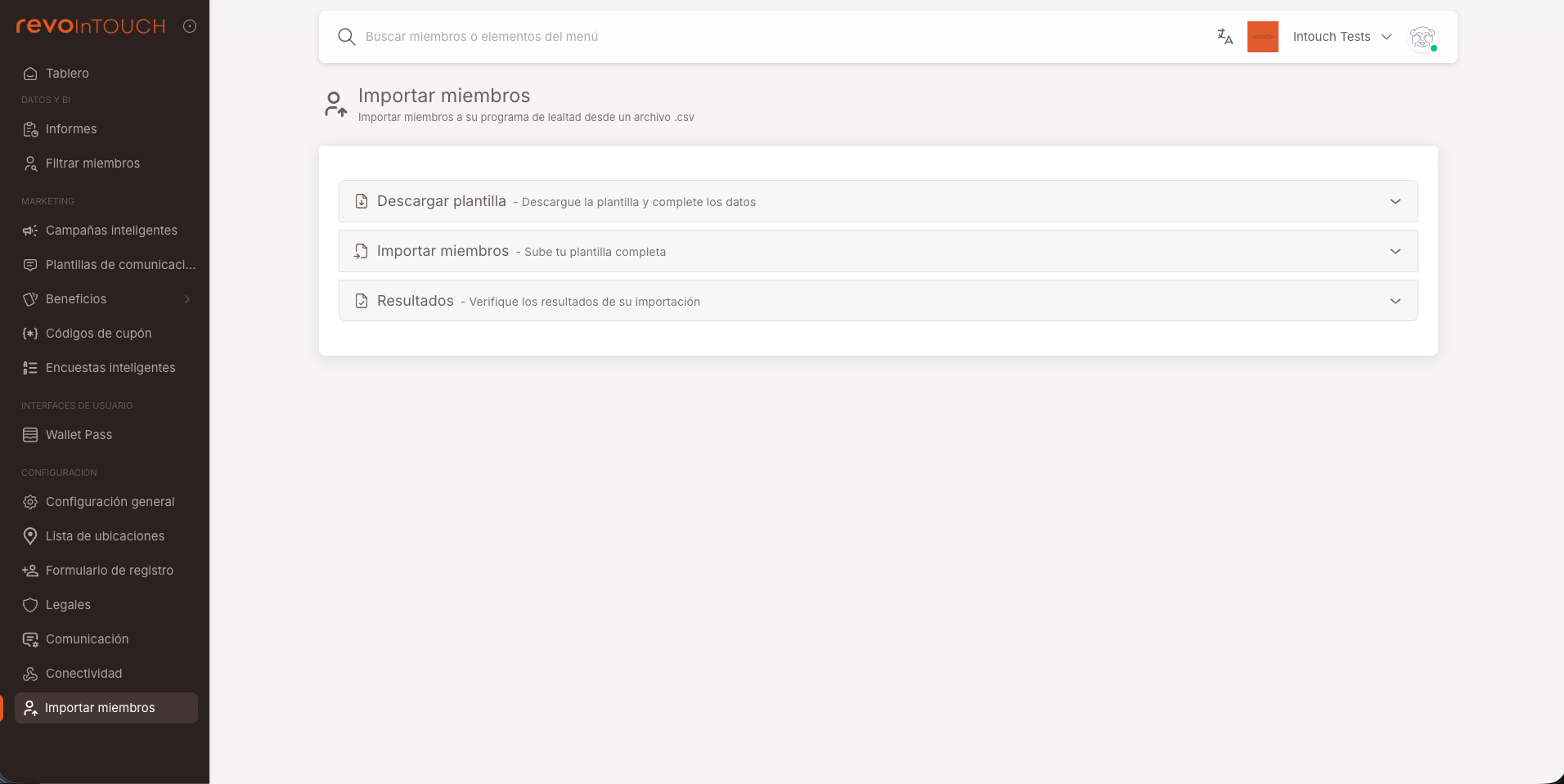
2. ACCESS THE IMPORT FUNCTION
Route: Configuration → Import Members
From this section, you can:
- Download template: Get a CSV file example with the correct structure
- Import members: Upload your CSV file and configure the import
- Results: Consult the import history
3. IMPORT MEMBERS
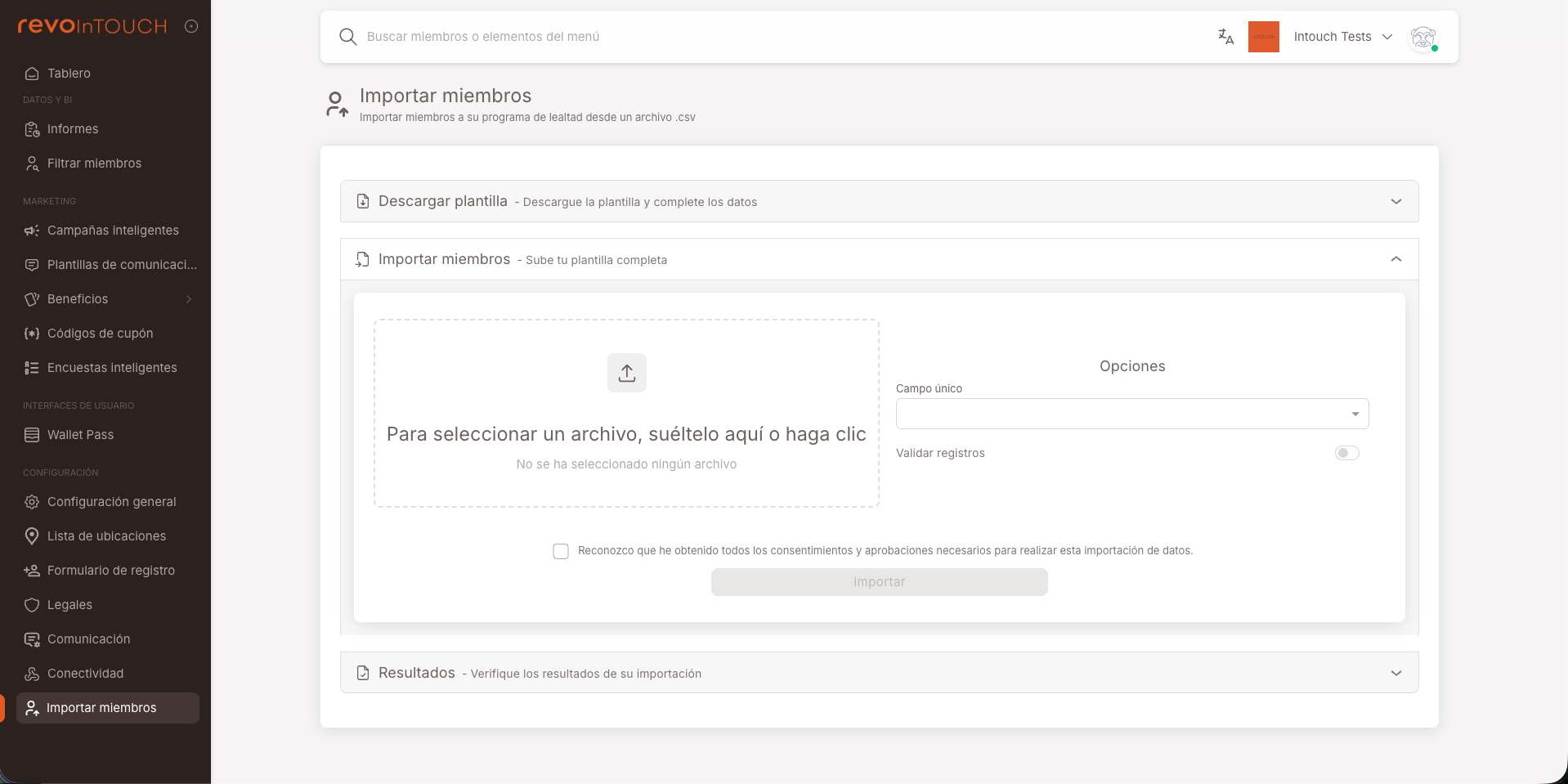
In the Import Members step:
- Click on Select file or drag the CSV file
- You can select if there is a unique field, either email or phone.
- You can select if you want the system to validate the entries.
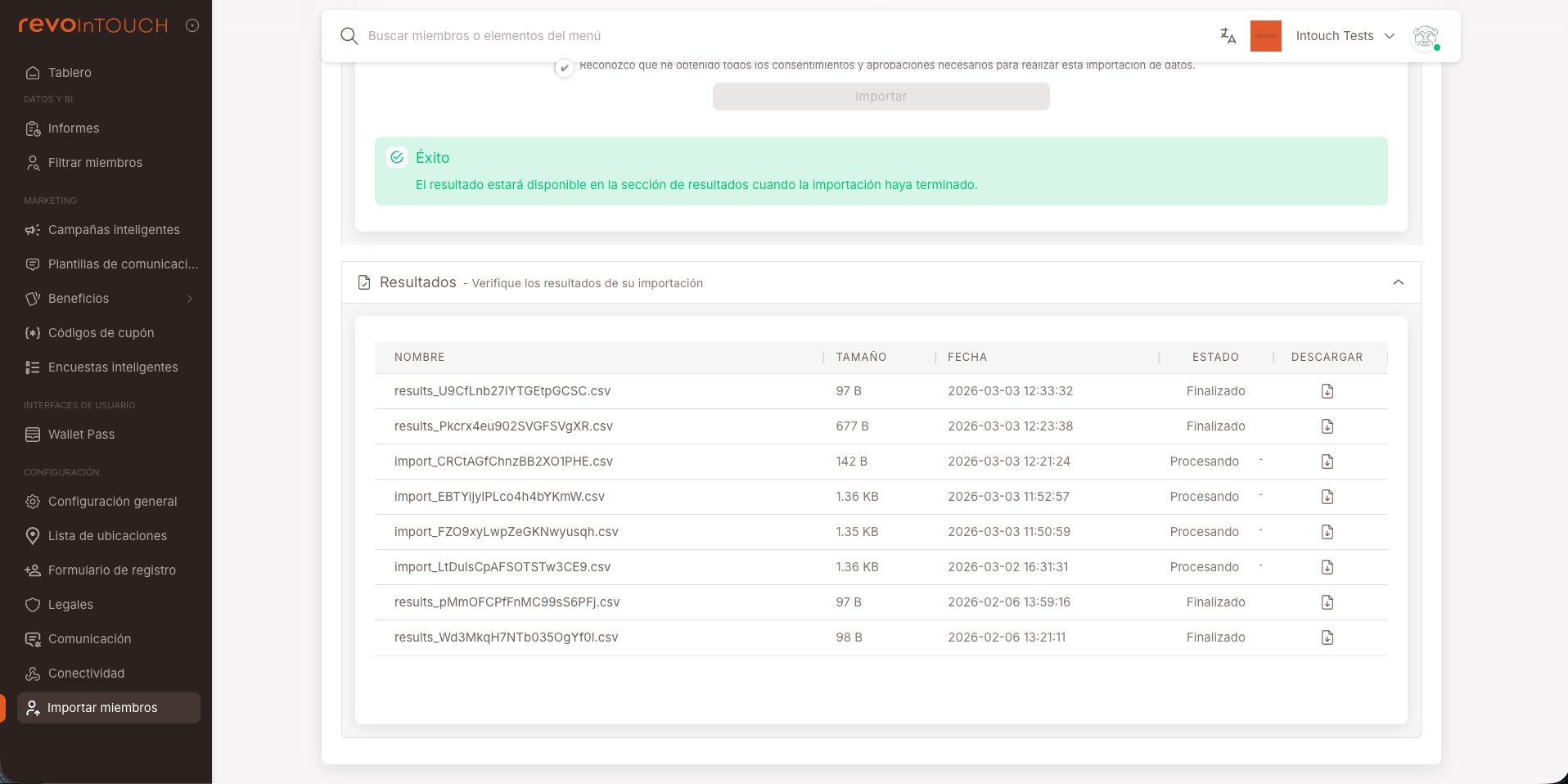
4. RESULTS
Once imported, you will be able to review how the import went, its progress and also see past imports.
5. VERIFY RESULTS
Verify in InTouch:
- Access to Filter Members → Find all members and search for a member from the CSV file.
- If everything went well, you will find the client when searching for it in the filter.