
STATUS: ACTIVE
VERSION:
1. WHAT IS AVIRATO 2. HOW THE INTEGRATION BETWEEN AVIRATO <-> REVO WORKS 3. CONFIGURATION IN REVO 4. HOW TO MAKE A ROOM CHARGE 5. HOW TO CANCEL A ROOM CHARGE
1. WHAT IS AVIRATO
AVIRATO is a cloud-based software for hotels and tourist accommodations. From a single platform you can manage reservations, rates, availability, and restrictions across multiple channels, as well as room planning and billing.
It also allows you to automate operational tasks, manage extras and additional services, apply discounts, perform upselling, and better control the guest experience throughout the stay.
The integration with Revo XEF allows restaurant charges to be centralized directly in the PMS reservation, simplifying account settlement and preventing manual errors.
2. HOW THE INTEGRATION BETWEEN AVIRATO <-> REVO WORKS
By connecting AVIRATO with REVO, you can use both systems together in the cloud.
With this integration you can:
- View reservations with today’s check-in date directly from Revo XEF.
- Filter reservations by guest name, reservation number, room number, etc.
- Perform charges from REVO to the guest’s room or reservation.
- Perform refunds, which are reflected in AVIRATO.
- Send the tip included in the order.
- Send each item line (product) as a detailed charge to the reservation.
- Send the guest’s signature, linked to the room charge.
In this way, all restaurant consumption is sent to the PMS so the platform can generate billing linked to the guest’s stay in AVIRATO, simplifying the final invoicing process.
3. CONFIGURATION IN REVO
INTEGRATION CONFIGURATION
1. Access the Revo XEF back-office.
2. Go to Integrations / INTEGRATIONS.
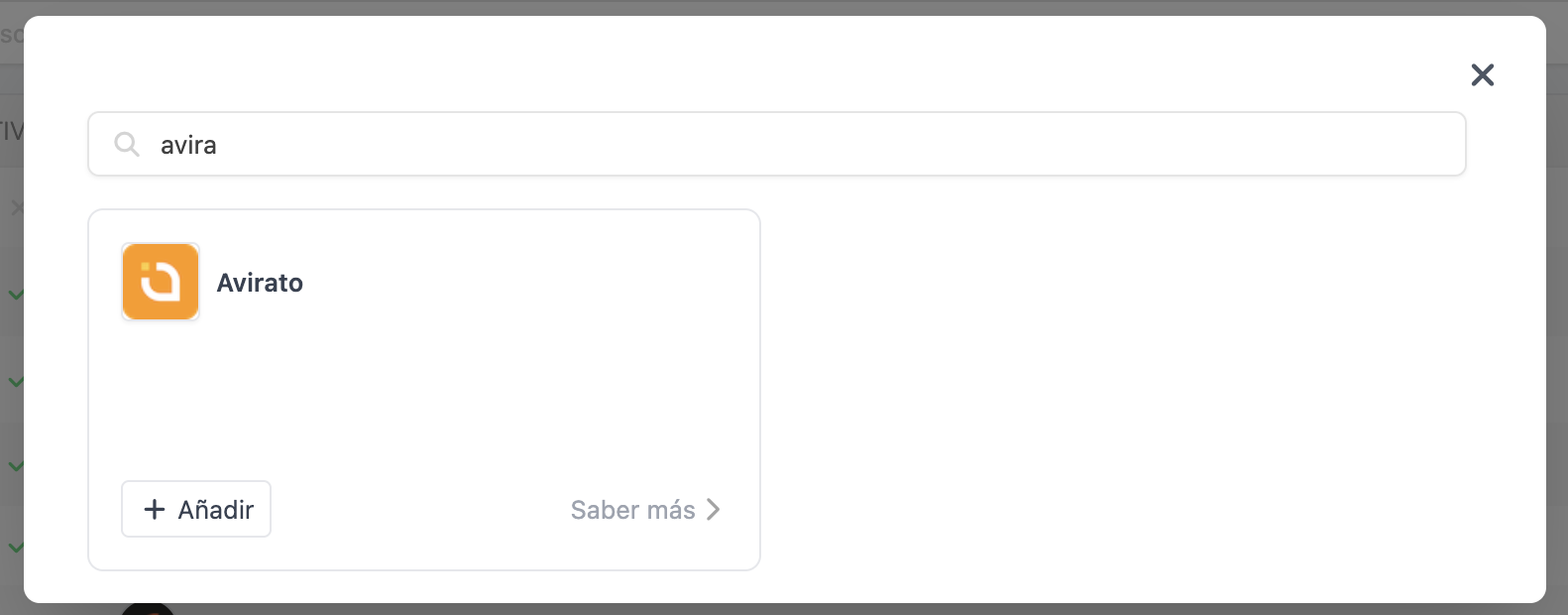
3. Click + New, search for Avirato, and select + Add.
4. Fill in the following fields:
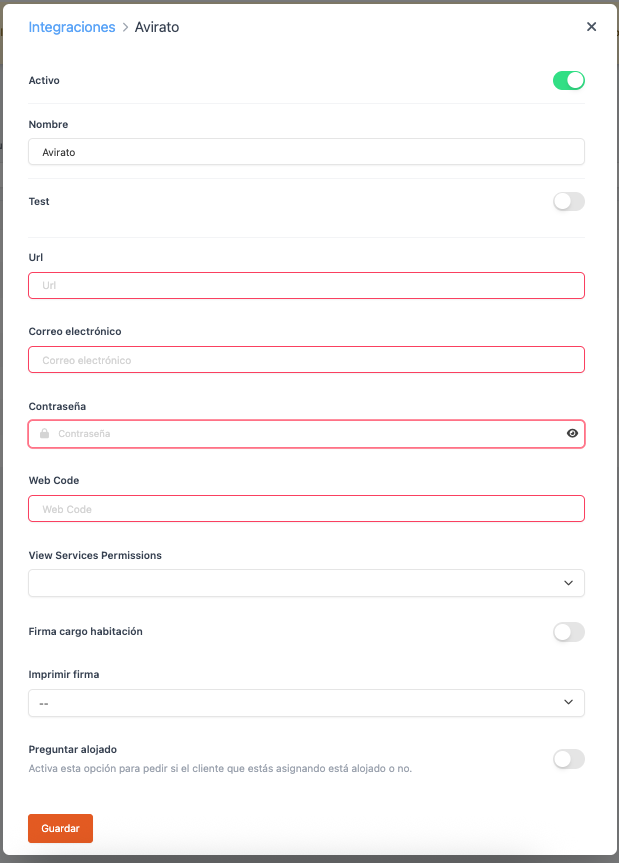
- Active:
- Name: Give the integration a name (for example, Avirato).
- Test: Disabled for production.
- URL: AVIRATO API URL.
- Email: API access user email provided by AVIRATO.
- Password: API user password.
- Web Code: Property code in AVIRATO.
- View Services Permissions: Choose which user profiles will see the “PMS” button in Revo XEF.
- Room charge signature: Enable to request the guest’s signature when performing a room charge.
- Print signature: Choose whether to print the signature on the receipt.
- Ask if staying: Enable this option if you want Revo to confirm whether the customer is staying before sending the charge to AVIRATO.
The URL and Web Code fields must be provided by AVIRATO.
6. Click Save.
PAYMENT METHOD CONFIGURATION
1. Go to Settings / PAYMENT METHODS.
2. The payment method linked to the PMS will be created automatically. You can edit it by clicking .
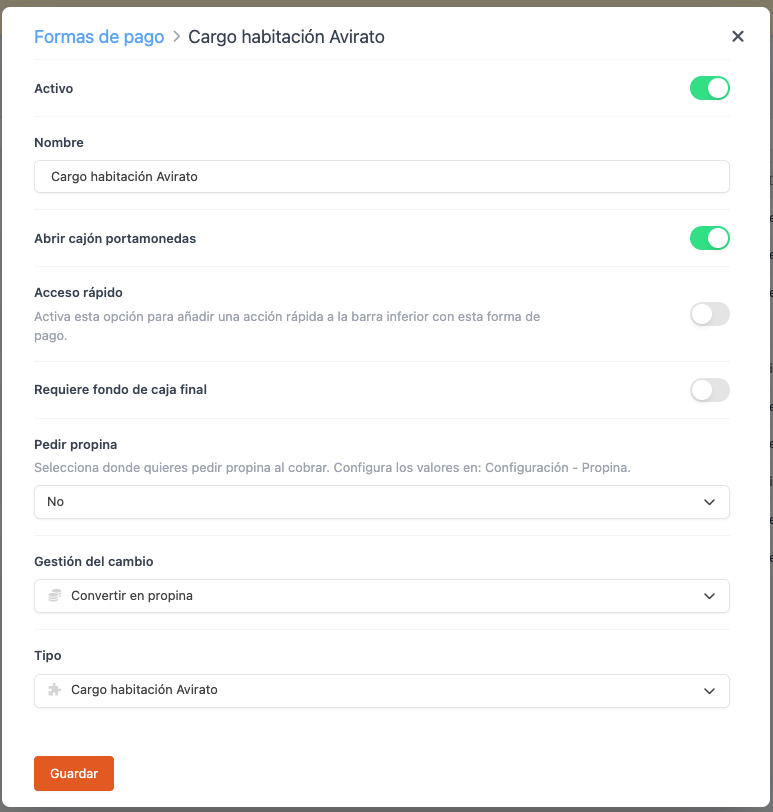
- Active:
- Name: Avirato Room Charge.
- Open cash drawer:
- Quick access: Enable it if you want quick access on the payment screen.
- Requires final cash float: Enable if required.
- Change management: Select how to process the excess payment amount: tip, cash movement, gift card, or not allowed.
- Type: AVIRATO Room Charge.
4. Click Save.
Done! The integration is now configured.
4. HOW TO MAKE A ROOM CHARGE
1. Open an order, add products, and tap Pay.
2. If you have quick access enabled, tap the PMS button (for example ). Otherwise, tap Other payment methods and select Avirato.
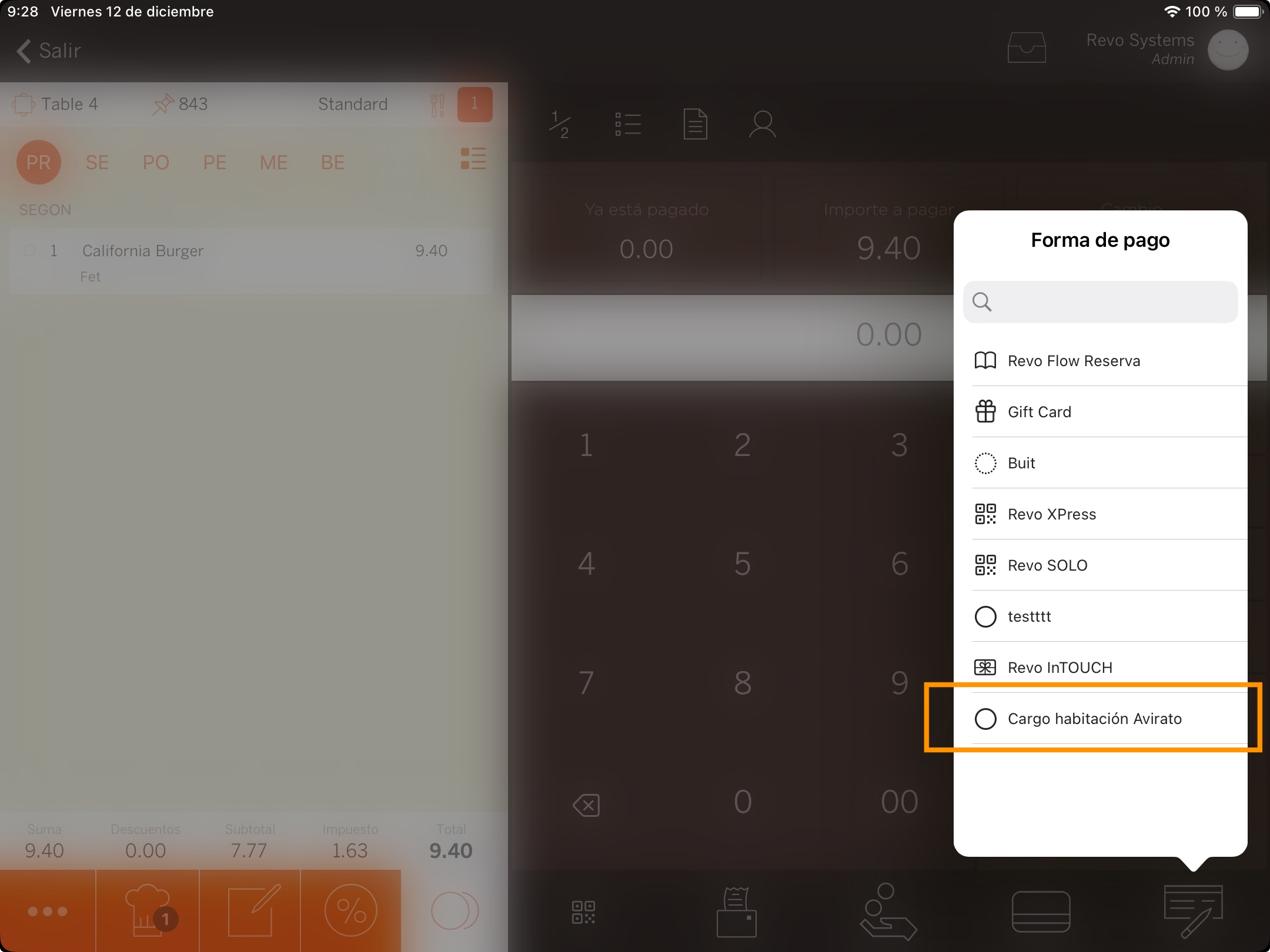
3. The list of reservations with today’s check-in date and future dates will open.
From this screen you can filter by:
- Guest name
- Reservation number
- Room number
4. Select the correct reservation or room and confirm the charge.
5. If Room charge signature is enabled, ask the guest to sign and tap .
6. Revo XEF will send to AVIRATO:
- Each product line as a detailed charge
- The tip, if it was added to the order
- The guest’s signature, if enabled
7. The system will print the receipt or ask whether you want to print it.
5. HOW TO CANCEL A ROOM CHARGE
1. From the REVO menu r, go to History.
2. Find the corresponding order, tap to open Quick actions, and select Make a refund.
3. Confirm by tapping OK.
4. The AVIRATO reservation selection screen will open again.
You can search by room number, reservation number, or guest name, depending on the active configuration.
5. If Room charge signature is enabled, ask the guest to sign the refund and tap .
6. The refund will be sent to AVIRATO and the receipt will be generated, or the system will ask if you want to print it.
7. Go back to History and you will find the negative invoice, referencing the original invoice that was refunded.