Status: Active
Integration
Set up the ECI integration
Add ECI in the back-office and complete the configuration fields.
1How to set up the integration
- Go to the back-office of Revo XEF.
- Go to Integrations / Integrations.
- Click + New, search for ECI and click + Add.

- Complete the details.

Important
All configuration fields are mandatory.
| Field | Value |
|---|---|
| Active | Enabled. |
| Name | Add an identifying name. |
| Test | Disabled. |
| Restaurant code | Provided by ECI. |
| Centre code | Provided by ECI. |
| External operator code | Provided by ECI. |
| Tax identifiers | Provided by ECI. Map the REVO taxes to the ECI tax code. |
- Click Save.
Payment method
Create the El Corte Inglés payment method
Add the payment method you will use to charge with ECI.
2How to create the payment method
- Go to Settings / Payment methods.
- Click + New and fill in the details.

| Field | Value |
|---|---|
| Active | Enabled. |
| Name | El Corte Inglés. |
| Open cash drawer | Disabled. |
| Quick access | Enabled. Enable it if you want to have it at hand.Requires Revo XEF Advance. |
| Requires closing cash float | Enabled. Enable it if you need it. |
| Change management | Not allowed. |
| Type | El Corte Inglés. |
- Click Save.
Payment
Charge an order with ECI
Select the El Corte Inglés payment method when paying.
3How to pay with ECI
- Open an order, add products and tap pay.
- If you have quick access, tap . If not, tap other payment methods and choose El Corte Inglés.
Important
- The full amount of the order can only be charged with the ECI payment method. If it is split by items, all of them must be charged with ECI.
- It is NOT possible to split the payment by diners.

- The system will print the receipt or ask you whether you want to print it.
Refund
Refund an order charged with ECI
Make the refund from the history.
4How to make a refund
- In the REVO menu r, go to History.
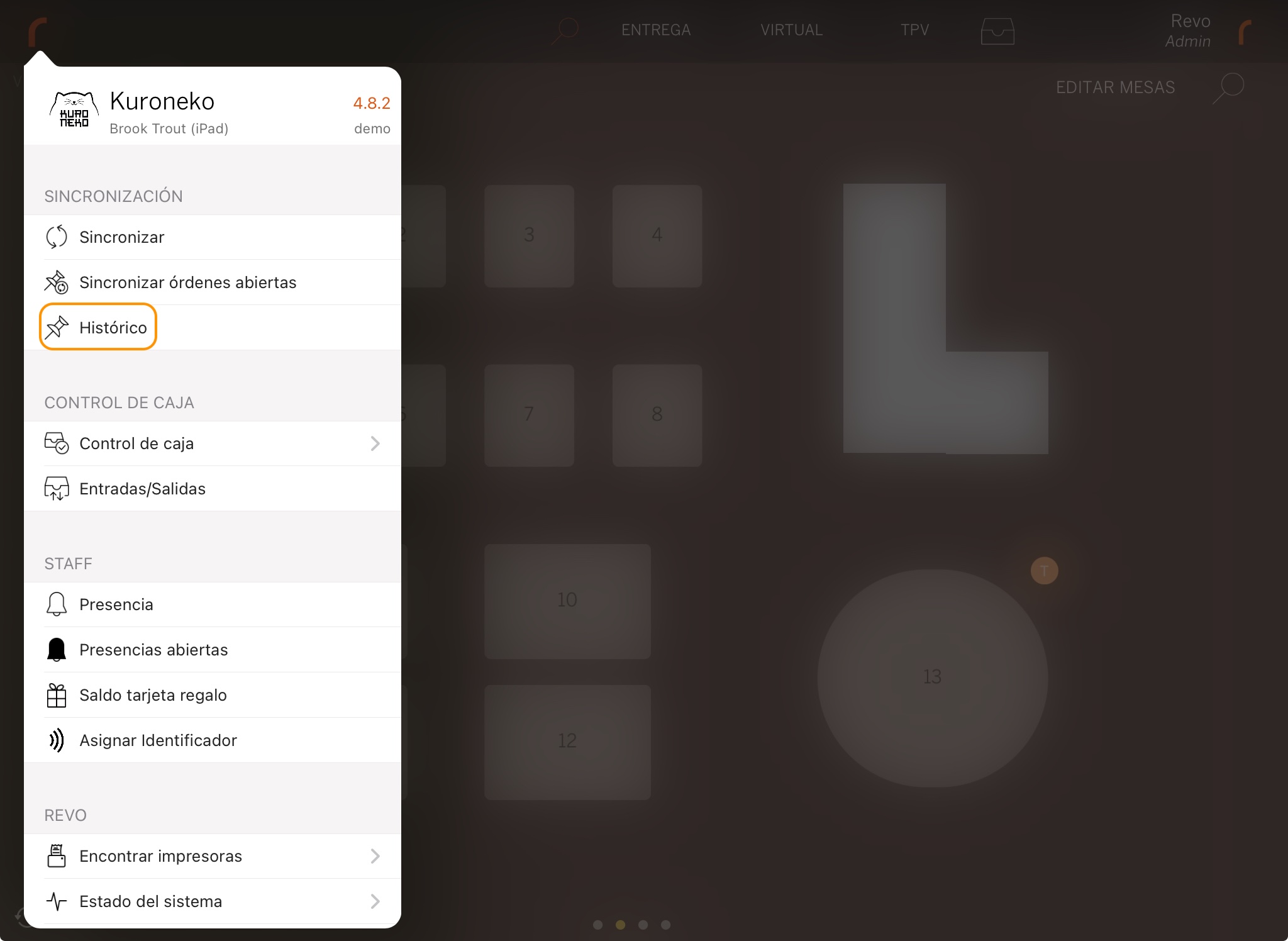
- Find the order, tap to see Quick actions and select Make a refund.

- Confirm by tapping OK.

- The receipt will be printed automatically.
- Go back to History and you will find the negative invoice. This order will include the reference to the invoice it refunds.